
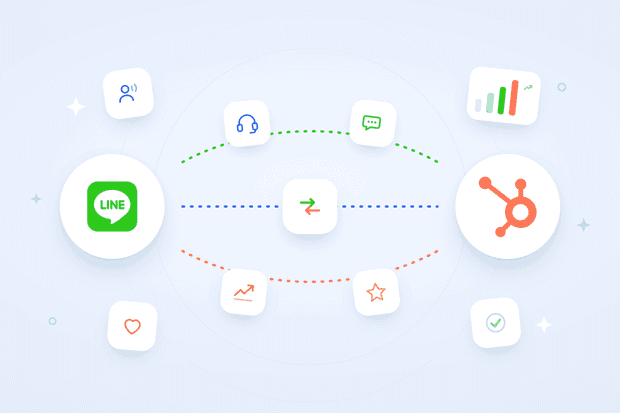
A LINE HubSpot integration connects your LINE Official Account directly to HubSpot, so you can manage LINE messages in HubSpot's inbox instead of switching between two separate apps.
If your business serves customers in Japan, Thailand, or anywhere else LINE dominates, you already know this problem
Customers message you on LINE with order questions and support requests, and you have to jump into a completely different app to answer them.
Have you ever replied to someone on LINE and had zero record of that conversation in your CRM? Over time, that gap costs you real context: your support team misses complaints, your sales team loses visibility, and conversations start dropping.
Having a HubSpot messaging integration for LINE fixes that.
Why LINE matters for businesses on HubSpot
A LINE HubSpot integration matters because right now, every LINE conversation your business has lives completely outside your CRM. Your team already answers customers on LINE every day but none of that activity ever touches HubSpot.
Your team logs into LINE separately, replies from there, and none of it connects to a contact record, a deal, or a ticket.
A LINE CRM integration solves this by pulling every LINE conversation into the same system you already use to manage contacts, deals, and support tickets.
Once you connect LINE to HubSpot, here's what changes for your team:
- You manage LINE messages in HubSpot alongside every other channel, so nothing lives in a separate app anymore.
- A support rep replying to a LINE message can immediately see that same customer's open deal, past tickets, or last purchase.
- Every LINE conversation gets tied to a contact record automatically, so your team never starts a reply with zero context.
- Your sales and support teams work from the same inbox, which means handoffs between them stop losing information.
What does a LINE HubSpot integration Do?
A LINE HubSpot integration takes every message sent to your LINE Official Account and delivers it straight into HubSpot's inbox as a real conversation, tied to a contact record, with replies syncing back out to the customer on LINE automatically.
Here's what happens behind the scenes when you sync LINE with HubSpot:
- A customer sends a message to your LINE Official Account, and the LINE messaging API passes it straight through to HubSpot.
- HubSpot creates a new conversation in the inbox you've assigned to that LINE channel, matching it to an existing contact or creating a new one.
- Your team replies from inside HubSpot, exactly the way they'd reply to WhatsApp or Facebook Messenger.
- That reply travels back out through the same connection and lands in the customer's LINE app, coming from your Official Account.
Essentially, HubSpot treats your LINE Official Account like any other custom channel. Your team sees a conversation, replies to it, and moves on. Meanwhile, everything that happens on LINE, from the first message to the last reply, stays logged against the contact record, so anyone on your team can pull up the full history later.
This is different from the LINE Official Account Manager you might already use, since that tool only shows you LINE conversations in isolation, with no connection to your contacts, deals, or support tickets in HubSpot.
What do you need to connect LINE to HubSpot?
You need 5 things in place before you connect LINE to HubSpot:
- A HubSpot workspace already set up for custom channel connections
- Sales Hub Professional or Service Hub Professional, or a higher tier
- A LINE Official Account, the business account type rather than a personal LINE profile
- Access to the LINE Developers console for that account
- Admin access to your HubSpot portal, with at least one inbox already created
If you don't have a LINE Official Account yet, you can create one through the LINE for Business website, since only Official Accounts can use the Messaging API.
Once you have those 5 things in place, here's how to connect LINE to HubSpot:
- Confirm your HubSpot workspace is on Sales Hub Professional or Service Hub Professional (or higher), with at least one inbox already created.
- Get your Channel ID and Channel Secret from the LINE Developers console, under your Messaging API channel's Basic settings and Messaging API tabs.
- Paste those credentials into Octopods to authenticate the connection.
- Turn on "Use webhook" in the LINE Developers console, and turn off LINE's built-in auto-reply and greeting messages so they don't fire alongside your team's replies.
- Choose which HubSpot inbox the LINE channel should route to.
- Start replying — messages sync in both directions automatically from that point on.
What can you do with LINE inside HubSpot?
When you integrate LINE with HubSpot's inbox, it turns your LINE Official Account into a fully managed support and sales channel.
Here's what a LINE HubSpot integration looks like in practice.
Two-way messaging in the HubSpot inbox
Your team receives LINE messages and replies directly from HubSpot. You can send text, images, and media without leaving the CRM. The customer's experience on LINE stays exactly the same. They just get faster, more informed responses.
Automatic contact creation and matching
The integration lets you automatically create HubSpot contacts from LINE messages. This way, you have a clear record and no unknown senders.
Every incoming LINE message is matched to an existing HubSpot contact automatically. If no match exists, a new contact is created with the conversation already attached. Your CRM stays clean and complete without anyone doing it manually.
Full conversation history on the contact timeline
Every LINE message is logged on the contact's HubSpot timeline alongside emails, calls, and every other interaction. Agents always have the full picture before they reply.
Multiple LINE Official Accounts
You can connect multiple LINE Official Accounts and route each one to the right HubSpot inbox and team. If you run separate accounts for different regions, brands, or departments, each one maps to the right place, keeping conversations organized from the start.
How support teams use LINE in HubSpot
Support teams that manage LINE messages in HubSpot use it to handle the same conversations they'd otherwise juggle in a separate app, just without leaving their normal workflow.
A customer messages your LINE Official Account about a delayed order, a product question, or a complaint, and your team handles it the same way they'd handle a ticket from any other channel.
In practice, that means:
- Reps reply to LINE conversations from the same HubSpot inbox they already use for email, chat, and other channels.
- Tickets created from LINE messages follow your existing routing and assignment rules, so the right person picks them up automatically.
- Agents check the contact timeline before replying, so they already know if this customer has an open deal, a past complaint, or a previous conversation on another channel. That matters even more if you're weighing LINE vs. WhatsApp for customer support, since a unified timeline is what makes running both channels through one inbox work in the first place.
- Teams close out LINE conversations the same way they close any other ticket, keeping reporting and SLAs consistent across every channel.
None of this requires your support team to learn a new tool or change how they work. LINE just becomes one more channel inside the system they're already using every day, which means faster replies for customers and a lot less context-switching for your team.
How sales teams use LINE in HubSpot
Sales teams manage LINE messages in HubSpot to keep prospecting and deal conversations moving without switching out of their normal sales workflow.
In practice, that means:
- Reps reply to LINE conversations from the same HubSpot inbox they already use for email and other channels, so no lead sits in a separate app waiting on a response.
- Every LINE conversation ties back to the contact's deal record, so a rep can see exactly where that person sits in the pipeline before replying.
- Reps trigger follow-up tasks and sequences off LINE conversations, the same way they would off an email thread.
- Deal notes and conversation history stay together on the timeline, so handoffs between reps or between sales and support never lose context.
This matters most for businesses selling into Japan, Thailand, or other markets where LINE is the first channel a prospect reaches for.
Why Octopods makes this possible
HubSpot doesn't offer a native LINE integration. If you want to manage LINE messages in HubSpot, you need a tool that connects the two, since there's no built-in option waiting inside your HubSpot portal.
Octopods is an integration tool that connects messaging channels, including LINE, WhatsApp, Telegram, Instagram, and Facebook Messenger, to HubSpot's inbox, so every conversation lands in the same place your team already works.
With Octopods, connecting LINE to HubSpot means:
- Your LINE Official Account gets registered as a custom channel inside HubSpot, using HubSpot's own Custom Channels framework rather than a workaround.
- Messages sync in both directions automatically, so replies from HubSpot reach customers on LINE without any manual steps.
- Contacts, conversations, and history stay tied together, exactly the way they would for any channel HubSpot supports out of the box.
A real-world look: LINE HubSpot integration in action
Imagine a mid-sized skincare brand selling across Japan and Thailand, where LINE is the main way customers reach out with questions before they buy and complaints after they do.
Before connecting LINE to HubSpot, the brand's support team managed everything inside the LINE Official Account Manager, completely separate from the HubSpot CRM their sales and marketing teams relied on every day.
A customer messages asking whether a product is still in stock, then messages again a week later about a delayed shipment. Without a LINE HubSpot integration, nothing connects those two conversations, so whoever picks up the second message has no idea the first one ever happened.
After the brand connects LINE to HubSpot, that entire picture changes:
- Both messages land in the same HubSpot inbox, tied to one contact record, so the second rep sees the full history immediately.
- Support tags the shipping complaint and routes it to the right team, using the same rules they already apply to email and WhatsApp.
- Sales sees the LINE conversation on the contact's timeline, right alongside the deal that's already open, and follows up without asking the customer to repeat themselves.
- The brand tracks every LINE conversation the same way it tracks every other channel, since it all flows through one system now.
The result is a support and sales experience that actually holds together across channels, instead of falling apart the moment a customer switches from LINE to email or back again.
What the LINE HubSpot integration doesn't cover
Before you move forward, it's worth knowing exactly what a LINE HubSpot integration does and doesn't include, so you set your expectations correctly from the start.
- Group chats aren't supported. If you're used to managing LINE group conversations, that capability doesn't carry over to HubSpot. You can only manage one-on-one conversations with your LINE Official Account.
- You need Sales Hub Professional or Service Hub Professional, or higher. Lower HubSpot tiers don't include Custom Channels, so the connection won't work on a Starter or Free account.
- You need a LINE Official Account, not a personal profile. Only Official Accounts can use the Messaging API, so a personal LINE account won't connect to HubSpot at all.
- Auto-reply and greeting messages need to stay off. If you leave LINE's built-in auto-reply or greeting messages turned on, they'll fire alongside your team's replies, which creates a confusing experience for the customer.
Ready to bring LINE Into HubSpot?
You've seen what a LINE HubSpot integration actually does, what it takes to set one up, and where its limits are. At this point, the only thing left is connecting it.
Ready to manage LINE messages in HubSpot alongside every other channel your team already uses?
We can help you connect your LINE Official Account to HubSpot in a few simple steps.
Frequently Asked Questions
Does HubSpot support LINE natively?
No, HubSpot doesn't offer a native LINE integration. You need a tool like Octopods to connect your LINE Official Account to HubSpot, since there's no built-in option inside your HubSpot portal for this.
What HubSpot subscription do you need to receive and reply to LINE messages?
You need Sales Hub Professional or Service Hub Professional, or a higher tier. Lower HubSpot plans don't include Custom Channels, so the connection won't work without one of these tiers.
Can you use LINE group chats in HubSpot?
No, group chats aren't supported through a LINE HubSpot integration. You can only manage one-on-one conversations between your LINE Official Account and individual customers.
Why isn't your LINE channel receiving messages?
Your LINE channel usually stops receiving messages because the webhook isn't enabled, or your account's auto-reply and greeting messages are intercepting them. Check that "Use webhook" is turned on in the LINE Developers console, and turn off auto-reply and greeting messages in the LINE Official Account Manager.
How do you get your LINE Channel ID and Channel Secret?
You get both from the LINE Developers console, inside your Messaging API channel's Basic settings and Messaging API tabs. You'll need to paste these into Octopods to authenticate the connection.