
LINE is how your customers expect to reach you in certain areas of the world, like Japan, Thailand, or Taiwan. But managing those messages separately from your CRM means your agents switch tools to gain context, and more often than not, they reply slower than they should.
Can you manage LINE messages in HubSpot? Yes, using Octopods, an integration tool that connects LINE and other messaging channels directly into your HubSpot inbox. In this guide, we walk you through everything you need to know about this HubSpot messaging integration.
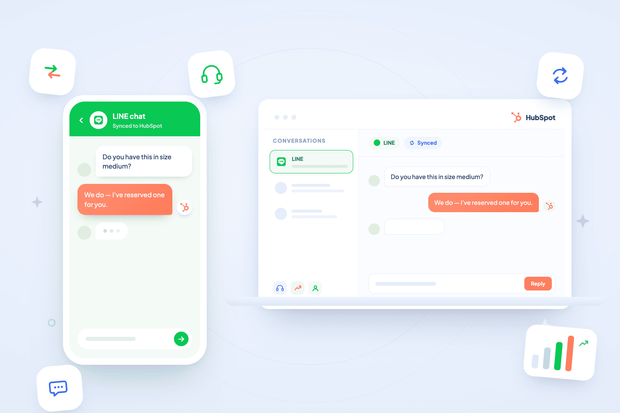
Once you connect LINE to HubSpot, every LINE conversation shows up right in your HubSpot inbox, and your replies go out as normal LINE messages.
Your agents don't learn a new tool. They just keep working from HubSpot, the way they already do for every other channel.
Why you need to manage LINE Messages in HubSpot
Managing LINE messages in HubSpot matters because it puts every LINE conversation right where your agents already work, instead of forcing them into a separate LINE console.
Here's exactly what that changes for your team.
- One inbox, no context-switching: Your agents reply to LINE messages from the exact same HubSpot inbox they already use for every other channel. Nobody keeps a separate tab open or logs into a second tool to stay on top of LINE.
- CRM continuity: Every LINE contact becomes a real HubSpot contact, so the conversation history sits alongside deals, tickets, and every prior interaction instead of staying trapped in a separate LINE console.
- Rich content, not flattened links: Stickers, photos, videos, and files sent on LINE arrive in HubSpot as real attachments, not stripped-down links your agents have to open elsewhere.
- Agents see who they're actually talking to: The customer's real LINE display name and profile photo show up right on the conversation, so your agents reply to a person instead of an anonymous ID.
What it looks like to manage LINE messages in HubSpot
Here's how to manage LINE messages in HubSpot inbox, from the moment a customer reaches out to the moment your agent replies.
- A customer sends a message to your LINE Official Account, the same way they always have.
- That message appears in your LINE HubSpot inbox within seconds, complete with the customer's LINE display name and profile photo attached.
- Your agent replies right from HubSpot, exactly the way they'd reply to any other channel. Can support teams reply to LINE messages directly from HubSpot? Yes, agents reply to LINE messages from HubSpot the same way they handle every other conversation, without touching a separate app.
- The customer sees that reply as a normal LINE message, with no indication anything runs through a different system.
- Stickers and attachments travel both directions, so nothing gets lost or flattened along the way.
From the customer's side, nothing changes at all. From your agent's side, LINE just becomes one more conversation in the HubSpot inbox they already work from every day.
Step-by-step: How to connect LINE to HubSpot
How do you connect LINE to HubSpot? It only takes a few steps once you have the right access in place, and this LINE Official Account HubSpot setup guide walks through each one.
Before you start, make sure you have a LINE Official Account with the Messaging API enabled, plus admin access to your HubSpot account. For the full technical reference alongside this walkthrough, see Setting Up LINE for HubSpot in our help center.
1. Create or open your Messaging API channel in the LINE Developers Console
Open your LINE Official Account's Messaging API channel settings and grab the Channel ID and Channel secret. You'll need both in step 5.
2. Connect HubSpot to your workspace
Sign in and authorize your workspace's HubSpot account so conversations and contacts can start to sync LINE with HubSpot. Skip this step if you've already connected HubSpot.
3. Add LINE as a channel
From your workspace, go to Channels, click Add Channel, and select LINE.
4. Grant LINE permissions in HubSpot
If this is the first channel of its kind on your HubSpot account, you'll get redirected back to HubSpot to approve the extra permissions LINE needs for conversations and contacts. This only happens once, and you're returned automatically to finish setup.
5. Enter your LINE credentials
Paste in the Channel ID and Channel secret from step 1, give the connection a friendly name like "Support – LINE JP," and save it.
6. Choose your HubSpot inbox
Pick which HubSpot Conversations inbox should receive your LINE messages. This step is what connects LINE Official Account to HubSpot inbox directly, creating a dedicated LINE channel entry inside it.
7. You're live
Send a test message to your LINE Official Account. It should show up in your chosen HubSpot inbox within moments, complete with the sender's LINE display name and photo.
These LINE messaging API HubSpot integration steps only need to happen once. After that, every new message syncs automatically.
Already have LINE connected somewhere else? Reconnecting won't create duplicates. Octopods detects and restores your existing connection automatically.
What happens behind the scenes when you manage LINE messages in HubSpot
Once you connect LINE to HubSpot, a few things happen automatically in the background:
- Messages get picked up and matched to the right HubSpot conversation automatically, with no manual mapping required on your end.
- Attachments, including photos, videos, files, and even stickers, get fetched securely from LINE and re-uploaded directly into HubSpot.
- If a message can't get delivered, whether that's a blocked bot, a LINE plan limit, or a temporary LINE outage, your agent sees exactly why inside HubSpot instead of a reply just vanishing silently.
None of this requires your team to understand LINE's API or troubleshoot connection issues on their own. The system handles it, and your agents just see a conversation that works the way they expect it to.
Ready to manage LINE messages in HubSpot?
You've seen exactly how to connect LINE to HubSpot and what your team gains once you do. Connect LINE to your HubSpot inbox today, and give your agents one place to handle every LINE conversation without switching tools.
Want more information or a tutorial before you do?
FAQs
Does the LINE HubSpot integration support group chats?
No, this only works with one-on-one chats. LINE group conversations aren't supported through this integration, so you can only manage direct conversations between your LINE Official Account and individual customers.
What if a customer hasn't shared their profile with you?
Your agent still sees the conversation without any issue. When a customer's profile isn't available, HubSpot falls back to a generic name instead of leaving the conversation unlabeled.
What happens if you hit your LINE Messaging API monthly limit?
Your agent sees exactly why messages aren't sending, right inside HubSpot, along with a link to upgrade your LINE plan. Nothing fails silently or gets left unexplained.
How do I manage multiple LINE Official Accounts in the HubSpot inbox?
Octopods connects each LINE Official Account to HubSpot the same way it handles every other channel: connect as many accounts as your business runs, and route each one to its own HubSpot inbox or team. Messages from every account land as conversations, matched automatically to the right contact, so managing several LINE accounts feels the same as managing one.