
If your team uses WhatsApp to talk to customers, you've probably felt the inconvenience of WhatsApp's 24-hour rule. You can contact a customer if they haven't replied in 24 hours.
WhatsApp messages templates are the only solution to this issue. They’re are pre-approved message formats that allow businesses to initiate or restart conversations outside the standard 24-hour window.
So if you're asking, how can I send approved WhatsApp message templates automatically from HubSpot workflows?
When you connect WhatsApp to HubSpot, you can send these WhatsApp business message templates directly from a contact record, a deal, or even a workflow without leaving HubSpot.
In this guide, we’ll walk you through how to manage WhatsApp templates inside HubSpot and give you real template examples your sales and support teams can use right away.
What are WhatsApp message templates?
WhatsApp message templates are pre-written, pre-approved message formats that businesses use to start conversations or re-engage customers on WhatsApp.
You have to submit them to Meta for review and approval before you can use them.
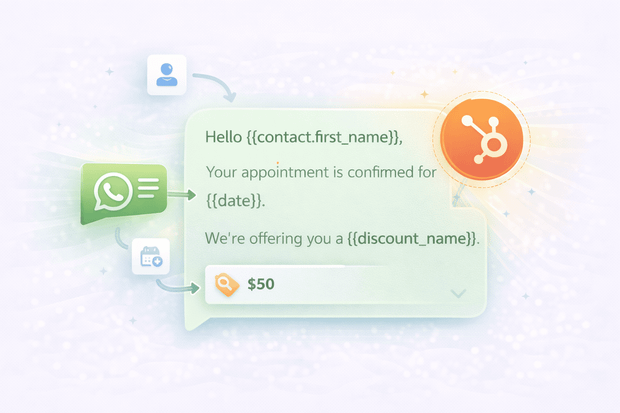
Templates support dynamic variables, things like a customer's name that get filled in automatically at send time. In the template itself, these appear as positional placeholders: {{1}}, {{2}}, and so on.
A complete WhatsApp business template can include:
- A header — optional, and can be text or media (an image, document, or video)
- A body — the main message text, where your variables live
- A footer — optional short text that sits below the body, often used for disclaimers or context
- Buttons — up to 10, either as quick replies or call-to-action links
Types of WhatsApp business message templates
| Template type | What it's for | Examples |
|---|---|---|
| Utility | Transactional messages tied to an existing interaction | Order confirmations, appointment reminders, ticket updates, shipping notifications |
| Marketing | Promotional or re-engagement messages | Special offers, product launches, follow-up campaigns, win-back messages |
| Authentication | Identity verification | One-time passwords, login verification codes |
When do you need a WhatsApp message template?
The answer comes down to one rule: WhatsApp 24-hour messaging window.
When a customer sends your business a WhatsApp message, a conversation window opens. For the next 24 hours, your team can reply freely. When they’re up, WhatsApp locks the conversations.
The only way to reopen it is through a WhatsApp message template.
It’s a hard rule built into the WhatsApp Business API, and it applies regardless of what tool you are using to send messages.
Situations where you will need a WhatsApp template
Here are the most common scenarios where WhatsApp business message templates become the only option:
- Following up with a lead who has gone quiet. If a prospect engaged with you on WhatsApp but hasn’t replied in more than 24 hours, a template is the only way to follow up.
- Re-engaging a customer after a support ticket closes. Once a ticket is resolved and the conversation window has closed, reaching back out to check satisfaction or share an update requires a template.
- Sending proactive notifications. Appointment reminders, shipping updates, payment confirmations, these often go out before a customer has even messaged you.
- First-time outreach over WhatsApp. If you want to reach a contact on WhatsApp who has never messaged your business before, you are starting from zero.
For teams that want to go beyond reactive conversations and build a structured outreach strategy on WhatsApp, proactive messaging is worth exploring on its own.
We cover how to set that up end to end in our guide on proactive WhatsApp messaging from HubSpot.
Why managing WhatsApp templates in HubSpot is better
If your team is already working out of HubSpot, jumping to a separate tool every time you need to send a WhatsApp message creates unnecessary friction.
The more steps between your team and the customer, the slower the response.
Keeping WhatsApp business message templates in HubSpot means your team can act on the right moment without switching context. That only happens when you integrate WhatsApp to HubSpot, either through the native integration or a third-party tool like Octopods.
Octopods is an integration tool that connects WhatsApp to HubSpot, along with other key HubSpot integrations, so your team can send and receive WhatsApp messages from inside HubSpot.
When Octopods is connected, sending WhatsApp templates from HubSpot becomes a natural part of how your team already works, rather than an extra process to manage on the side.
How to send WhatsApp templates from HubSpot
Sending a WhatsApp message template from HubSpot is a three-step process.
Here is how each step works in practice when you use the WhatsApp HubSpot integration in Octopods.
Step 1: Create and submit your template
Templates are created inside your Octopods workspace.
- Fill in the details — the template name, category, language, body text, and any optional header or buttons.
- Submit it to Meta for approval. You don’t need to go through Meta's own dashboard separately.
- Once submitted, the template sits in a pending state while Meta reviews it. Approval typically takes anywhere from a few minutes to 24 hours.
- When it’s approved, the template automatically becomes available to use inside HubSpot.
If you already have templates approved in Meta, Octopods can sync those across too, so you aren’t starting from scratch.
Step 2: Send a template from a contact or deal record
Once Octopods is connected to HubSpot, a WhatsApp messaging option appears directly on your contact and deal records.
The rep can select the right template, fill in any dynamic fields and send it without leaving HubSpot.
Step 3: Trigger a template through a HubSpot workflow
Templates can also go out automatically, with no manual action from your team.
When you add a WhatsApp step to a HubSpot workflow through Octopods, you select which approved template to send and map the dynamic variables to the relevant contact or deal properties. When the workflow fires and a contact hits that step, the template goes out via WhatsApp automatically.
That’s why sending WhatsApp templates from HubSpot is scalable. The process can run in the background while your team focuses on the conversations that need a human touch.
Not sure where to start with your WhatsApp HubSpot setup?
Whether you are creating your first template or building your first WhatsApp workflow in HubSpot, we are happy to walk you through it.
WhatsApp template examples for HubSpot teams
These are ready-to-use WhatsApp message templates for sales & support teams.
WhatsApp templates for sales follow-up
- Following up after no response
When a lead has gone quiet for more than 24 hours, you need something short and low-pressure that gives them an easy way back into the conversation.
"Hi {{1}}, just following up on our conversation about {{2}}. Are you still interested in moving forward? Happy to answer any questions."
- Post-demo follow-up
Send this right after a product demo while the conversation is still fresh. It keeps the momentum going without being pushy.
"Hi {{1}}, great speaking with you today about {{2}}. I wanted to share a quick summary and next steps — can I send that over now?"
- Re-engaging a cold lead
This WhatsApp template for sales follow-up works well when a deal has been sitting inactive for a while. It references context without making the lead feel chased.
"Hi {{1}}, it has been a while since we last spoke. We have some updates on {{2}} that might be relevant to you — would you like to hear more?"
- Appointment reminder
A simple reminder before a scheduled call that feels professional and considerate — and cuts down on no-shows.
"Hi {{1}}, just a reminder that we have a call scheduled for {{2}} at {{3}}. Looking forward to speaking with you."
WhatsApp templates for customer support
- Support ticket resolved notification
This WhatsApp template for customer support closes the loop after an issue is resolved and invites the customer to reach back out if they need anything.
"Hi {{1}}, your support request regarding {{2}} has been resolved. Please let us know if you need anything else."
- Post-purchase check-in
A warm, proactive message that builds goodwill after a purchase and opens a natural support channel before the customer even needs to ask.
"Hi {{1}}, thank you for your purchase of {{2}}. We hope everything is going well — do not hesitate to reach out if you have any questions."
What makes a good WhatsApp message template?
Writing a good WhatsApp business template means hitting two targets at once: getting it past Meta's approval process and getting a response from the person you are sending it to.
Here is what to keep in mind on both fronts.
- Keep it concise. WhatsApp is a messaging app, not an email inbox. If your template runs long, most people will not read past the first two lines.
- Avoid overly promotional language. Meta will reject templates that read like marketing blasts. If your template sounds like a promotional email, it is worth rewriting before you submit it.
- Use personalization variables. A WhatsApp business message template that opens with a customer's name and references something specific feels like a message from a person, not a broadcast.
- Make the next step clear. Every template should leave the reader knowing exactly what you want them to do.
- Match the tone to the relationship. A customer support WhatsApp template sent to someone who has been a customer for two years can afford to be warmer and more familiar than a first-touch message to a brand new lead.
What are the limitations of sending WhatsApp templates from HubSpot?
There are a few practical constraints to sending WhatsApp templates worth knowing before you build your workflows around them.
- Templates must be Meta-approved before use. Only templates that have been reviewed and approved by Meta can be sent. If a template is rejected or paused, it is unavailable.
- Marketing templates have their own 24-hour rule. Marketing WhatsApp business templates can only be delivered if the recipient has messaged your business within the last 24 hours.
- There is a variable ceiling in HubSpot workflows. When sending a WhatsApp template from HubSpot via a workflow through Octopods, you can pass a maximum of 8 body variables, 1 header variable, and 2 button variables per workflow step.
- Templates can’t be edited after creation. Once a template is created, you can’t change the language or variable format.
- Some template types are not supported. Carousel templates, catalog messages, coupon templates, and location headers aren’t currently supported when sending through HubSpot.
Getting started with WhatsApp templates in HubSpot
If your team is losing conversations because the 24-hour window keeps closing before you can follow up, WhatsApp message templates are the most practical fix. And the good news is that getting set up doesn’t take long.
Templates are created and managed directly inside your Octopods workspace, where you can build them, submit them to Meta for approval, and keep track of their status all in one place.
Octopods connects to HubSpot in minutes, and once it does, your team can start sending WhatsApp business message templates without changing how they work in HubSpot.
Want to see how it works or have questions about setting up your first WhatsApp template on HubSpot?
We're happy to help.
FAQs
What are WhatsApp message templates and when do you need them?
WhatsApp message templates are pre-written, Meta-approved message formats that businesses use to initiate or restart WhatsApp conversations. You need them any time you want to reach out to a customer after the 24-hour messaging window has closed.
How can I send approved WhatsApp message templates automatically from HubSpot workflows?
When you connect WhatsApp to HubSpot through Octopods, you can send WhatsApp templates from HubSpot directly from a contact record or a deal or a HubSpot workflow.
How long does it take for a WhatsApp template to get approved?
Meta's approval process typically takes anywhere from a few minutes to 24 hours. You submit the template through your Octopods workspace, and once it is approved, it becomes available in HubSpot automatically.
Can WhatsApp templates be triggered automatically from HubSpot workflows?
Yes, through Octopods, you can add a WhatsApp step to any HubSpot workflow and select which approved WhatsApp business template to send. When a contact hits that step, the template goes out automatically via WhatsApp.