
All of your customers are on WhatsApp, and they don't want to leave it to send you a support email.
For teams working inside Intercom, this creates a gap. You’re managing conversations across live chat and email, yet one of your highest-volume channels sits completely outside your inbox.
The best case scenario here is to connect the two platforms.
Connecting Intercom and WhatsApp Business API brings WhatsApp conversations inside Intercom inbox. Teams handle support from one inbox, and customers get support on their favorite platform.
It’s a win-win situation. And Intercom actually enables it. It has a native WhatsApp integration, but it’s a bit limited, which makes third-party integration tools an attractive option for businesses.
But how does a WhatsApp Intercom integration works?
In this guide, we’ll answer your question, along with these ones:
- How WhatsApp integrates with Intercom
- Why businesses connect Intercom and WhatsApp
- Is Intercom native WhatsApp integration better or third party tools
How WhatsApp Business API works with Intercom
If you’re looking into a WhatsApp API integration for Intercom, it helps to understand how the WhatsApp Business API works.
The first thing to know is that it’s different from the regular WhatsApp Business App. The app is designed for small teams replying from a phone. The API is built for businesses that need automation, multiple agents, reporting, and the ability to handle high message volume.
Because of this difference, Intercom can’t connect directly to the WhatsApp Business App. It needs the API. And that’s where an integration partner comes in.
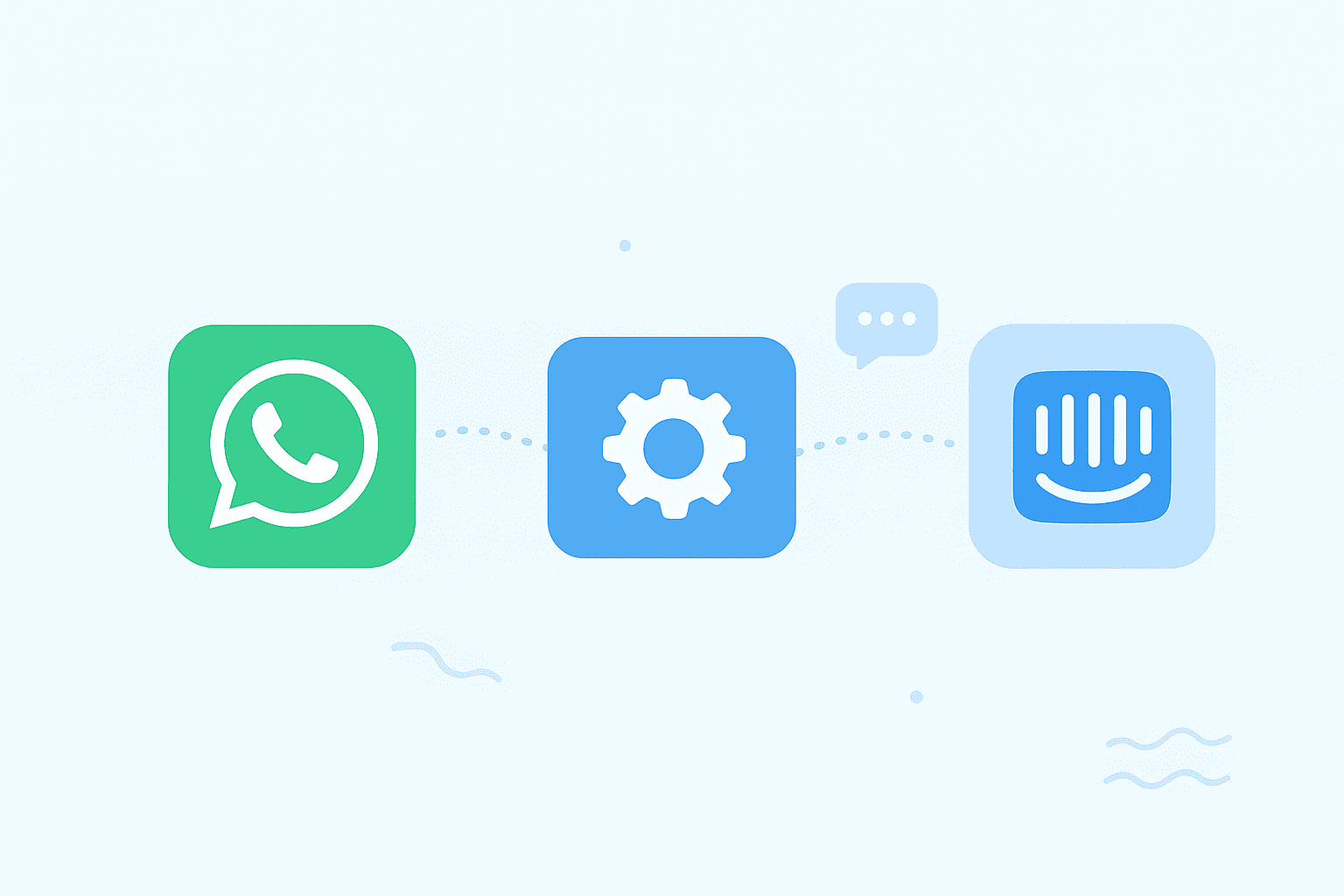
The API doesn’t have a visual inbox; it just sends and receives data. An integration partner translates that data into real conversations inside Intercom so your team can use WhatsApp like any other channel.
The way messages work in an Intercom WhatsApp API integration is as follows:
- A customer sends a message on WhatsApp
- Message passes through the integration layer
- Message appears instantly inside Intercom
- The same happens in reverse when your team replies
The key point: Intercom requires an integration partner to unlock full WhatsApp API functionality. Without that layer, WhatsApp can’t operate natively inside your Intercom workspace the way your team needs.
Why connect WhatsApp to Intercom
Connecting WhatsApp to Intercom brings your highest-volume messaging channel into the same support inbox your team uses. This gives you a lot of benefits, including centralized conversations and using Intercom's key features to manage WhatsApp chats.
Here’s an overview of the benefits you get from running WhatsApp customer service inside Intercom.
Centralize WhatsApp conversations in Intercom
When you connect WhatsApp and Intercom, WhatsApp messages appear in Intercom inbox, alongside emails, live chat, and other messaging apps.
Your team gets the full conversation history and context in one place, including media like images, videos, and documents. This means agents can respond faster, and thus you can retain more customers and deliver an overall better support experience.
Automate routing using Intercom assignment rules
Any business handing high message volumes needs smart routing, and an Intercom WhatsApp integration gives you that.
When using WhatsApp inside Intercom, teams can use Intercom's assignment rules to direct each conversation to the right team or agent. This gives businesses better workload balance and reduces the chance of dropped conversations.
Reduce tool switching & agent overhead
When teams use WhatsApp and Intercom from one inbox, they stop switching between tools every other second.
Customers don't leave their favorite platform to get support, and support teams don't leave the customer service platforms they're using. This setup leads to a smoother workflow overall.
Manage WhatsApp messages with Intercom workflows
Intercom workflows let you automate key parts of your WhatsApp customer service, including instant auto-replies, keyword-based routing, and smooth after-hours message handling.
Everything runs inside Intercom, so customers get fast, consistent responses while your team stays focused on higher-value conversations.
Improve manager visibility & performance tracking
When you integrate WhatsApp and Intercom, you get customer conversations and metrics in one place. A clear view of how your team is performing.
And because agents handle WhatsApp inside Intercom, every message contributes to the same reporting—response times, resolution times, workloads, and SLA adherence. This makes it much easier to spot gaps, coach teams, and maintain consistent service quality across every channel.
Want to get the most out of the WhatsApp API on Intercom?
How to integrate WhatsApp with Intercom
There are two ways you can connect WhatsApp and Intercom: through Intercom’s native integration or through a third-party integration tool, like Octopods.
Using native Intercom integration
To connect WhatsApp and Intercom through Intercom’s native integration, follow these steps:
- Make sure you have a verified Meta Business Account, a WhatsApp Business profile, a valid phone number, and access to the WhatsApp Business API.
- Go to Intercom Settings > Channels > WhatsApp
- Click Connect WhatsApp business number
- Follow Meta’s required steps
- Request verification for your Meta Business profile
- Build your business profile
- Start testing WhatsApp as a channel in your Intercom inbox
That said, Intercom’s native integration has some limitations. It only lets you connect two numbers, and it doesn’t support templates with headers. Hence the reason people use connector tools.
Using Octopods
If you’re looking to scale and grow with Intercom and bypass those limitations, Connecting WhatsApp to Intercom through Octopods is the most secure way to do so. Here is the step-by-step guide:
- Get a phone number that’s not already registered on the WhatsApp Business app
- Subscribe to the Octopods WhatsApp plan
- Through Octopods, choose WhatsApp channel and click on Login with Facebook Business Manager
- For onboarding a new number, click on Create a WhatsApp Business Account
- Finish the required steps, then click on Register on Cloud API
- Click on Activate Channel to connect your number to Intercom
- Add a payment method to your WhatsApp Business Account
- Start messaging customers through Intercom
Here's a quick demo video on how the WhatsApp Intercom integration works through Octopods.
WhatsApp Intercom integration demo
Want help setting this WhatsApp Intercom integration?
WhatsApp workflows inside Intercom
Integrating WhatsApp with Intercom opens up many opportunities to automate WhatsApp Intercom tasks.
You can create WhatsApp workflows in Intercom that make support faster and smoother. From auto-responses to intelligent routing, these workflows help your team manage every conversation efficiently.
Next, we’ll highlight the most common WhatsApp workflows businesses use inside Intercom to save time and improve customer service.
Manage WhatsApp conversations in Intercom
Connecting WhatsApp and Intercom gives your team a unified inbox, so all customer conversations live in one place.
When a customer messages you on WhatsApp, agents can reply directly inside Intercom without switching apps, keeping every interaction organized and visible.
Managing WhatsApp conversations in Intercom means you can:
- Use assignment and routing rules to make sure each conversation lands with the right agent
- Rely on simple text macros for common replies
- Filter your inbox to create a dedicated view just for WhatsApp conversations
Auto reply to new WhatsApp messages in Intercom
Customers expect a quick response, but it’s not always possible for your team to be available 24/7. Auto-reply workflows in Intercom solve this by sending instant messages when a new WhatsApp inquiry comes in
You can set up after-hours workflows to let customers know when someone will get back to them. Or first-response automation to acknowledge messages immediately.
Trigger WhatsApp follow-ups & reminders from Intercom
Timely follow-ups can be hard to keep up with, especially when your team is juggling a lot of conversations.
Intercom’s Workflows make this easier by automatically sending WhatsApp lead follow-ups, support case reminders, or appointment confirmations.
Everything runs in the background, so customers stay informed without your team having to manually chase every message.
To set this up, you can:
- Choose a trigger inside Intercom (new lead, ticket status change, upcoming appointment)
- Select WhatsApp as the channel for the automated message
- Add or choose an approved template to send
- Set the timing for the follow-up or reminder
- Activate the workflow so messages send automatically
Trigger WhatsApp templates from Intercom workflows
WhatsApp templates are essential for any business that wants to message customers after the 24-hour conversations window closes.
Once a conversation goes inactive, WhatsApp only allows businesses to re-engage using approved templates—so they’re the key to sending reminders, follow-ups, or updates when the customer hasn’t replied in a while.
Inside Intercom, teams can use Workflows to trigger these templates automatically.
Use Intercom bots with WhatsApp
Intercom bots help businesses automate parts of the customer experience, from answering common questions to qualifying leads and routing conversations.
Fin, Intercom’s AI-powered agent, is the most advanced option, built to understand natural language and respond using your help center content.
Intercom also offers custom bots that follow simple rules or guided flows. Once WhatsApp is connected to Intercom, these bots can operate on WhatsApp just like they do on web chat or SMS.
WhatsApp by Intercom vs WhatsApp via an Integration partner
Here's a quick comparison between using Intercom's native integration for WhatsApp and using an integration partner.
| Feature | Native integration | Integration partner (like Octopods) |
|---|---|---|
| API Access | Directly via Intercom + Meta | Through the third-party tool, which handles API complexity |
| Media & Files | Supports images, video, audio, documents | Full media support |
| Templates | Requires WhatsApp-approved templates after 24 hour window | Supports rich templates (text, media, interactive) |
| Multiple Numbers | Up to 2 business numbers per account | Multiple WhatsApp numbers per account |
| Automation & Routing | Uses Intercom’s built-in workflows | Routing, custom data attributes, and automation via partner |
| Reliability | Good for light to moderate volume; limited if you scale aggressively | More reliable at scale; handles API delivery, rate limits, and higher throughput more smoothly |
FAQs
Can Intercom handle voice messaging from WhatsApp
Yes, when a customer sends a voice message on WhatsApp, Intercom automatically converts it to text. Your team sees the transcription in the conversation thread and doesn’t have to play the audio.
This makes voice notes:
- Searchable in your Intercom inbox
- Usable by bots like Fin AI to generate replies
Can Intercom support multiple WhatsApp numbers?
Yes, Intercom allows you to connect up to 2 WhatsApp Business API numbers in a single workspace. It also supports multiple numbers if they are associated with two separate WhatsApp business accounts.
Does Intercom support WhatsApp media?
Yes, Intercom supports a variety of media from WhatsApp, including images, attachments, GIFs, videos, audio & voice notes, and shared locations.
Do I need an integration layer to connect WhatsApp to Intercom?
No, not necessarily. Intercom has a native WhatsApp integration that you can use without the need for a third-party app. However, if you want more advanced features and don’t want to be set back by the native integration’s limitations, you can use an integration layer like Octopods.