
![7 WhatsApp Message Template Examples in Intercom [Ready-to-use]](/content/images/size/w620/2025/12/ChatGPT-Image-Dec-18--2025--03_53_40-PM--2-.png)
If you’re using WhatsApp in Intercom, you’ve likely had to send a WhatsApp message template at some point. Maybe a message didn’t go through. Maybe Intercom blocked free typing and asked you to choose a template instead.
That’s because WhatsApp requires approved templates for certain types of outbound communication, especially after the 24-hour reply window closes.
And for Intercom teams handling support updates, sales follow-ups, or operational notifications, templates quickly become a daily part of how WhatsApp is used.
This article is a collection of WhatsApp message template examples for Intercom.
You’ll find ready-to-use examples organized by real use cases so you can see what compliant templates actually look like. You can copy these examples, adjust the wording, and use them as a starting point for your own Intercom WhatsApp template messages.
Why WhatsApp message templates matter for Intercom users
In a perfect world, you’d be able to message a customer on WhatsApp whenever you want. But to protect the user experience, WhatsApp enforces a 24-hour messaging rule.
The rule states that if a customer hasn't messaged you back within 24 hours, the conversation closes. To reopen that conversation and reach out to them again, you can’t type a message. You need to use a pre-approved WhatsApp template.
For Intercom teams, these templates are essential for:
- Re-engaging a customer after a support ticket took a day or two to solve.
- Sending proactive notifications like shipping updates or booking confirmations.
- Scaling operations by using Intercom Workflows to send automated messages.
How WhatsApp message templates work inside Intercom
When you integrate WhatsApp and Intercom, WhatsApp message templates are used whenever free-form replies aren’t allowed. Instead of typing a custom message, agents or workflows must select from a list of pre-approved templates.
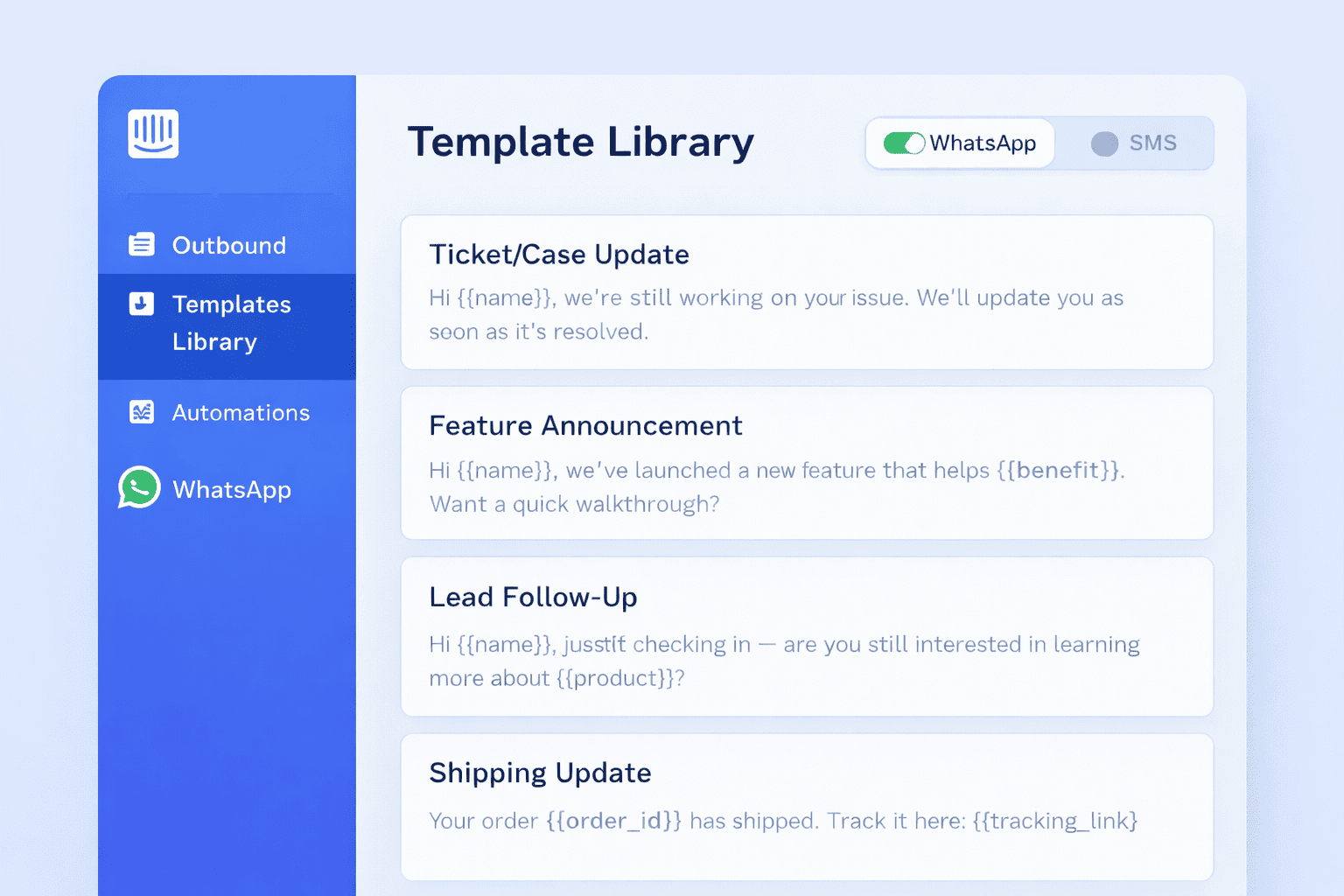
Before a template can be used in Intercom, it must be submitted to WhatsApp (via Meta) for approval. During submission, each template is assigned a specific category, which determines how it can be used and how it’s priced.
The main three WhatsApp template categories are:
- Marketing: Marketing templates are used to promote product or share value with opted-in users. They include feature announcements and special offers.
- Utility: Businesses use utility templates to share important, transaction-related updates a customer expects to receive. Examples are order confirmations and shipping updates.
- Authentication: Authentication messages are used only for identity verification and security. These typically contain a one-time password (OTP) or verification code.
Since WhatsApp templates are structured messages, not just free-form text, each template is has components that help keep messages clear.
When creating templates in the Intercom WhatsApp template flow, you can use the following components:
- Placeholders: These are variables like
{{1}}or{{2}}that automatically pull information from Intercom, such as a customer’s name - Headers: Headers appear at the top of the message and help set context immediately
- Buttons: Buttons make it easier for customers to respond or take action
WhatsApp message template examples for Intercom
Below are practical Intercom WhatsApp template examples, ready for copying and pasting. You can customize the wording, variables, and buttons to match your product and tone.
1. Customer support templates
These WhatsApp support templates for Intercom are used when agents want to re-engage customers after they’ve gone quiet, give updates about tickets, or send reminders.
- Ticket update
- Resolution notification
- Appointment & call reminders
Optional buttons:
- Confirm
- Reschedule
- Out-hours message
2. Sales templates
These WhatsApp sales templates in Intercom help with follow-ups, qualification, and nurturing.
- Lead follow-up after 24 hours
- Demo or call reminders
Optional button:
- Confirm demo
- Qualification questions
- Trial expiry notification
3. Marketing templates
Marketing messages must follow WhatsApp rules and be sent only to opted-in users.
These WhatsApp marketing templates for Intercom focus on value, not promotion.
- Feature announcement
- Newsletter or content drop
- Webinar or Event Reminder
Optional button:
- Join now
4. Operational templates
These WhatsApp notification templates in Intercom are common in e-commerce, logistics, and field operations.
- Order confirmation
- Shipping update
- Delivery attempt
- Account verification
How to use WhatsApp templates in Intercom workflows
WhatsApp templates work especially well within Intercom’s workflows because they turn a strict rule into an automated advantage. Since Intercom already tracks your customer data, you can trigger the right template at the perfect moment.
Common ways teams use WhatsApp templates in Intercom:
- Sending templates directly from the inbox when the 24-hour window expires
- Triggering templates through Intercom Workflows based on events or conditions
- Using templates for re-engagement when conversations go cold
- Sending customer updates without agent intervention
- Combining templates with bots like Fin or rule-based automation
- Using templates as fallback messages when free-form replies aren’t allowed
How does Octopods help with WA templates?
While Intercom handles the chat, an integration provider like Octopods acts as the bridge that makes WhatsApp templates more powerful.
Many teams find that the standard Intercom setup has limits. Octopods helps in cases such as:
- If you want to send a template that includes a specific PDF brochure or a video header.
- If you want to use "Call to Action" buttons that link to different parts of your app.
- If you are sending thousands of templates and need detailed delivery and error logs to see exactly who received the message and who didn't.
- If you need to manage multiple WhatsApp Business numbers (for different countries) all inside a single Intercom workspace.
FAQs
What are WhatsApp message templates in Intercom, and why do I need them?
WhatsApp message templates in Intercom are pre-approved message formats that let you send outbound WhatsApp messages when a conversation is outside the 24-hour customer care window. After that 24-hour window, Intercom will only let you continue conversations or start new ones using approved templates because WhatsApp enforces this rule to keep messaging relevant and compliant.
Can I use any WhatsApp template I want in Intercom?
You can only use approved templates. Templates are created in your WhatsApp Manager and then reviewed by Meta/WhatsApp. Only once they’re approved will they show up as Intercom WhatsApp templates available in your workspace. If they’re pending or rejected, you won’t be able to select them for sending.
Why was my WhatsApp template rejected or not showing in Intercom?
Templates can be rejected if they don’t follow WhatsApp’s guidelines (for clarity, grammar, policy compliance, etc.). They might also not appear in Intercom if they’re still pending approval, written in the wrong language, or contain unsupported content. Make sure your template text complies with all WhatsApp Business policies.
Does Intercom support interactive and media-rich WhatsApp templates?
Intercom supports basic text and button templates, but full media headers (images, videos) might depend on your provider and how it integrates with Intercom. Some providers like Octopods can help send templates with richer elements, but not all integrations support them natively.