

Offering customers support on Slack channels feels fast and personal, but it’s only efficient if you connect these channels to your CRM.
If your customer conversations live outside HubSpot, you won’t have tickets connected to messages, agents will struggle to get context while helping customers, and managers will never have full-picture visibility.
So, you're probably asking, how can our customers ask for support in Slack while our agents reply from HubSpot?
When Slack is connected to HubSpot through Octopods, an integration tool that brings messaging channels into HubSpot as native support channels:
- Every customer Slack conversation becomes a structured support ticket
- Tickets get linked to the right contact record
- Issues get assigned to the right agent
- Everything is tracked alongside every other channel your team uses.
In this guide, we’ll walk you through how to manage customer support on Slack HubSpot integration.
Why B2B teams use Slack as a customer support channel
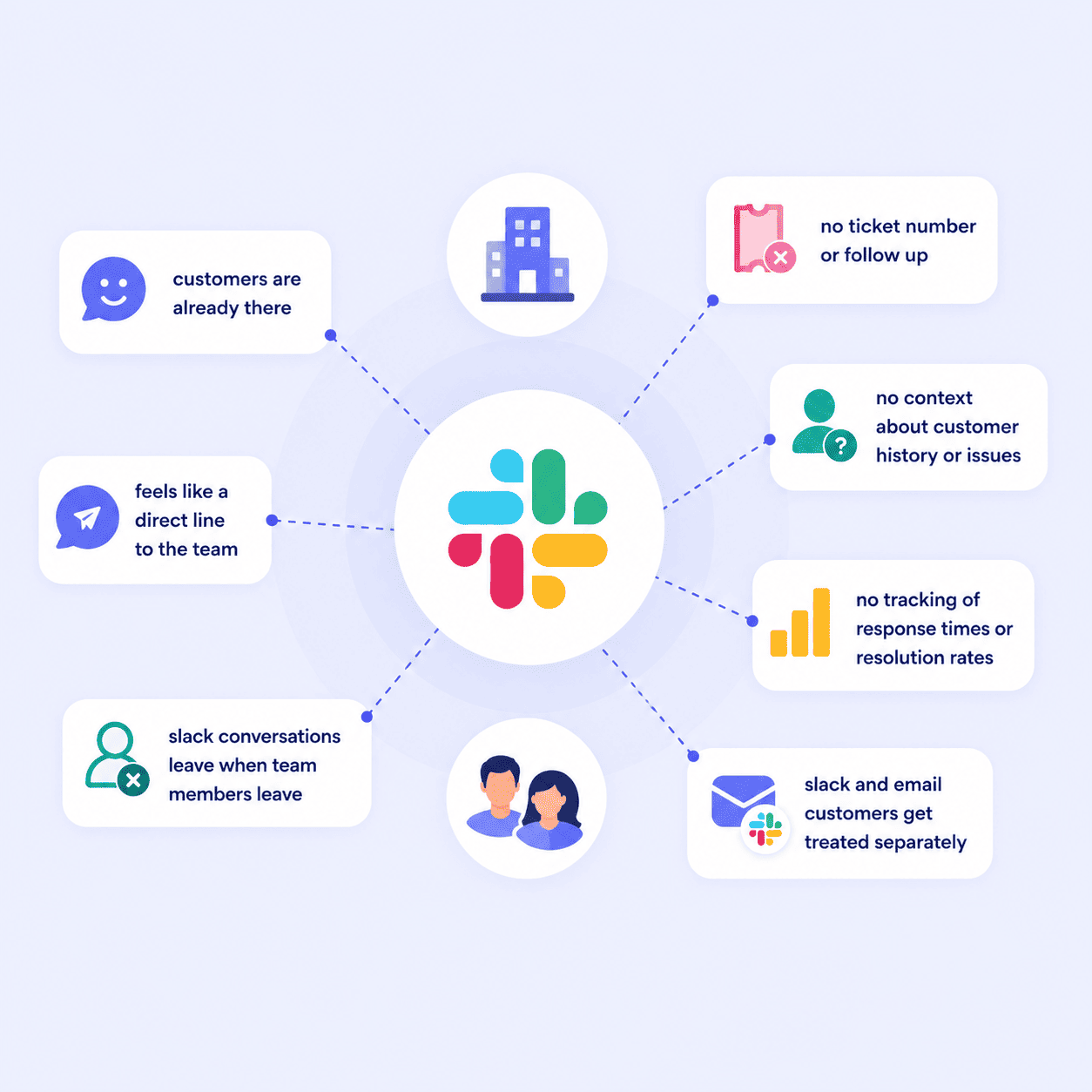
B2B teams use Slack for customer support because it's where their customers already are, and for SaaS companies, offering a dedicated Slack channel has become a standard part of the customer experience.
It feels like a direct line to the team, which customers genuinely appreciate.
The problem is that Slack without a CRM behind it doesn't scale. There's no SLA tracking, no escalation logic, no audit trail, and no way to measure how your team is actually performing.
Here's what the absence of a HubSpot Slack integration looks like:
- Support requests get buried in threads with no ticket number to reference or follow up on.
- Agents reply without context about customer history or open issues
- Managers can't track response times or resolution rates because none of that data lives anywhere structured.
- When a team member leaves, their Slack conversations go with them
- Customers who use both Slack and email get treated as different contacts
Slack is a great channel for customer relationships. It just needs HubSpot behind it to be a reliable support operation.
How Slack customer support works in HubSpot
When you connect Slack to HubSpot through Octopods, the entire support experience runs from inside HubSpot.
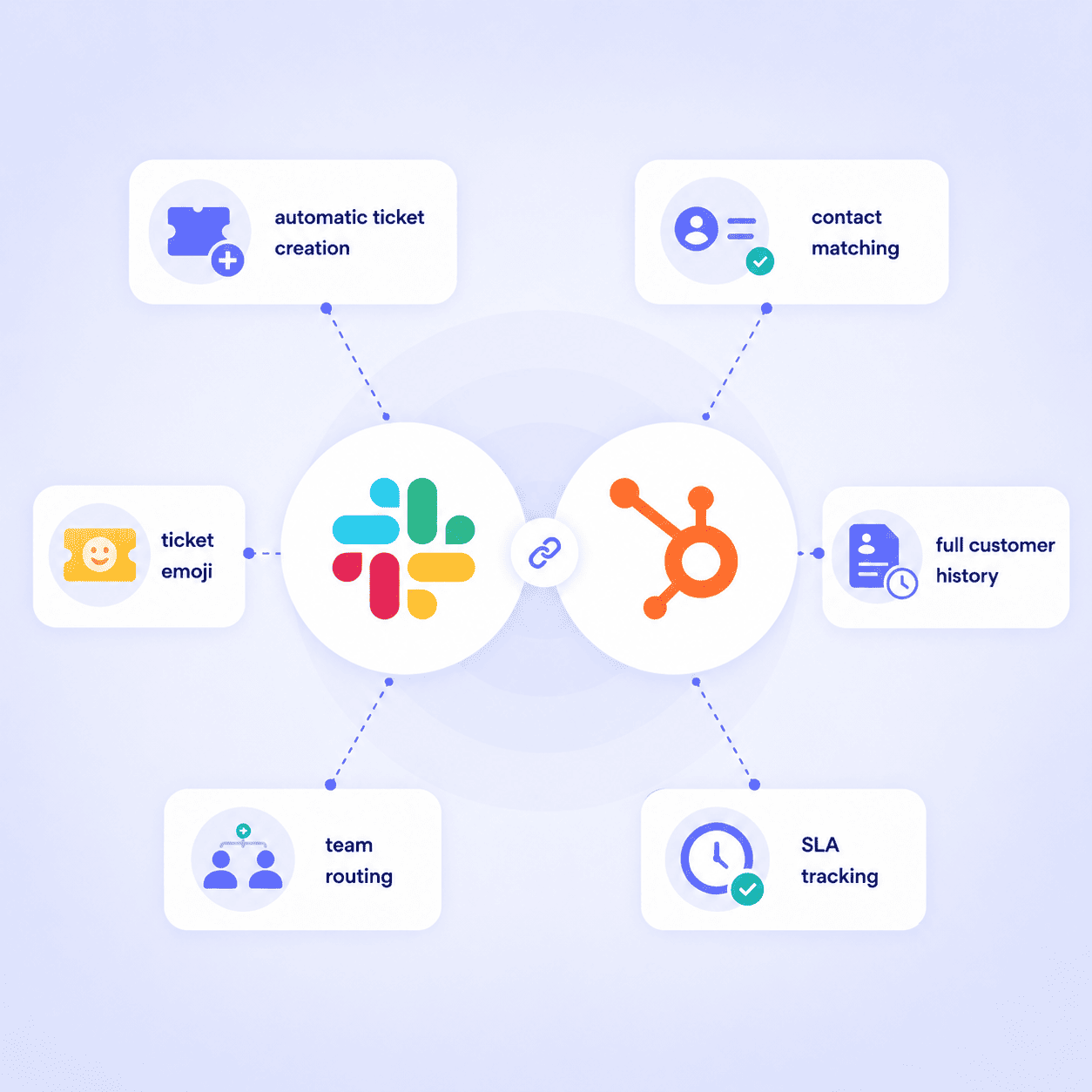
Here's what happens when you connect Slack to HubSpot inbox:
1. Slack conversations appear in the HubSpot inbox
When a customer sends a message in a connected Slack channel, it appears in the HubSpot inbox automatically. Agents handle it from there the same way they handle other channels, without ever switching to Slack to reply.
And if you're asking, can HubSpot Breeze Customer Agent answer questions in customer Slack channels and hand off to our team? Yes, it can. Breeze will handle any conversation it receives in HubSpot inbox, including those from Slack.
2. Automatic contact matching and ticket creation
Incoming Slack messages are matched to existing HubSpot contacts automatically, and a support ticket is created for each new conversation. From the very first message, the interaction has a ticket number, a timestamp, and a contact record attached to it.
3. Full customer history before every reply
When an agent opens a Slack ticket in HubSpot, they see the customer's complete history, including previous tickets, prior conversations across all channels, deal history, and contact details. This makes it faster and easier to reply and help customers.
4. The ticket emoji reaction
When a Slack message creates a HubSpot ticket, Octopods automatically adds a ticket emoji reaction to the original message in Slack.
This signals to everyone in the channel that the message has been captured in HubSpot and is being handled.
5. Team assignment and routing
Slack tickets are assigned to the right agent or team based on HubSpot's existing routing rules. In no time, you won’t have any messages sitting around unassigned. Each person gets the right conversation right away.
6. Response time and SLA tracking
Because Slack tickets live inside HubSpot, response times are measurable and SLA rules apply to Slack the same way they apply to email. Managers can track team performance without logging into Slack or pulling data together manually.
Want to see it in action?
Book a call with the Octopods team and we'll walk you through a live demo.
How Slack Connect shared channels work with HubSpot
Slack Connect lets businesses create shared channels with external organizations directly inside Slack.
It's how many B2B teams manage ongoing relationships without relying on email, and it's become a standard part of enterprise customer success and agency workflows.
When these shared Slack Connect channels are connected to HubSpot through Octopods, every conversation in those external channels becomes a structured HubSpot conversation.
This is especially valuable for:
- Enterprise B2B businesses managing dedicated customer Slack workspaces across multiple accounts.
- Agencies running shared project channels with clients who expect fast, direct communication.
- SaaS companies offering Slack-based customer success channels as part of a premium or enterprise tier.
- Any team managing ongoing relationships through Slack rather than email, where conversation history and accountability matter.
Slack Connect makes Slack feel like a premium support channel. Connecting it to HubSpot makes it a structured, measurable one.
How to filter Slack messages that enter HubSpot
Some Slack messages don’t need to become HubSpot tickets, and Octopods gives your team control over exactly what syncs.
There are four sync modes available when setting up your Slack HubSpot integration, so you can match the workflow to how your team actually operates.
- Every message: all messages in the connected Slack channel sync to HubSpot automatically. This works well for dedicated customer success channels where every interaction is worth tracking.
- Threads only: only threaded replies sync, keeping your HubSpot inbox focused on structured conversations rather than every one-off message.
- Manual: agents use a Slack message action to choose which messages get brought into HubSpot. This gives your team full control over what enters the CRM, which is useful for mixed-use channels.
- Reaction: adding a specific emoji reaction to a Slack message triggers it to sync to HubSpot. A lightweight option for teams that want to stay in Slack but still capture the right conversations for their Slack CRM workflow.
The right sync mode depends on how your team uses Slack for customer support and how structured you need your HubSpot inbox to be.
B2B customer support use cases for Slack inside HubSpot
The way teams use Slack for customer support varies a lot depending on the business model.
Here are the most common use cases for a Slack CRM integration in B2B environments and how each one works once Slack is connected to HubSpot.
Dedicated customer success channels
A SaaS company gives each enterprise customer a dedicated Slack channel as part of their onboarding or premium tier.
- All conversations from those channels flow into HubSpot as tickets, automatically assigned to the account's customer success manager.
- The CSM replies from HubSpot, the reply appears in Slack
- Full conversation history sits on the account record, accessible to anyone on the team, at any time.
Slack Connect support for external partners
With Slack Connect, agencies and enterprise teams can run shared channels with clients and partners directly inside Slack.
- When a client raises an issue or asks a question in a shared channel, it appears in HubSpot immediately.
- Account manager handles it from the CRM without needing to monitor Slack separately.
This makes Slack Connect a genuinely structured support channel rather than an informal messaging thread, and it's one of the more powerful applications of the Slack HubSpot integration for client-facing teams.
Multi-channel support continuity
A customer emails on Monday and messages in the Slack channel on Wednesday.
- Because both interactions are tied to the same HubSpot contact record, the agent handling the Slack message sees the full conversation history across every channel.
- No one needs to ask the customer to repeat themselves because there isn’t any missed context
This is one of the clearest advantages of a proper Slack CRM setup over managing Slack in isolation.
Managing high-volume community support
A business runs a Slack community with hundreds of customers.
- Using threads-only sync mode, only formal support requests that receive threaded replies flow into HubSpot as tickets.
- The community feels open and informal but every real support interaction is tracked, assigned, and measurable.
It's a practical way to use Slack for customer support at scale without flooding the HubSpot inbox with every message.
Benefits of using Slack in HubSpot for customer service managers
For customer service managers, the biggest problem with Slack support is the invisibility. Once Slack is connected to HubSpot, that changes completely.
Here's what becomes possible when your Slack customer success HubSpot setup is running properly.
- Slack ticket volume, response times, and resolution rates are visible in HubSpot reporting. You get the same reporting you rely on for email and live chat applied to Slack.
- SLA compliance is measurable for Slack the same way it is for every other channel. Set your SLA rules once in HubSpot and they apply across the board, including every inbound message from a connected Slack channel.
- Every Slack customer interaction has a full audit trail. Every message, reply, and status change is logged against the ticket and the contact record.
- Support requests don't disappear when a team member leaves. Because conversations live in HubSpot rather than in someone's Slack workspace, the full history stays with the account regardless of team changes.
- Team performance is trackable across Slack alongside all other channels. Managers get a unified view of how the team is performing without logging into multiple tools or piecing together reports manually.
How Slack customer support in HubSpot works in practice
Here's what a real support interaction looks like once your Slack HubSpot integration is running.
- An enterprise customer messages their dedicated Slack channel about a critical bug.
- Message appears in the HubSpot inbox immediately, a ticket is created automatically, and a ticket emoji reaction appears in Slack so the whole channel knows it's being handled.
- Support engineer opens the ticket in HubSpot and sees the customer's full account history before typing a single word.
- They reply from HubSpot, and the reply is delivered directly in Slack.
- The customer responds in Slack, and that reply appears on the same HubSpot ticket thread.
- The issue gets escalated to the technical team, resolved within SLA, and the ticket is closed.
- At the end of the week, the support manager reviews Slack response times and resolution rates in HubSpot reporting without opening Slack once.
Ready to use Slack in HubSpot for support?
If your team is already using Slack for customer support, the missing piece is getting those conversations into HubSpot where they can be tracked, assigned, and measured.
Octopods connects Slack to HubSpot in minutes, so you can start turning Slack messages into structured support tickets without changing how your customers communicate with you.
Want to see it in action?
We can give you a 15-min demo of how Octopods connects Slack and HubSpot!
Frequently asked questions
Can support teams manage Slack messages as tickets inside HubSpot?
Yes. When Slack is connected to HubSpot through Octopods, incoming Slack messages automatically become support tickets in HubSpot. Agents manage them from the HubSpot inbox without ever needing to switch to Slack.
Does the Slack HubSpot integration support Slack Connect and shared channels?
Yes. Octopods supports Slack Connect shared channels, which means conversations in external channels with customers, clients, or partners flow into HubSpot the same way internal channel messages do. Every interaction is logged, ticketed, and trackable.
Does HubSpot automatically create contacts from Slack messages?
Incoming Slack messages are matched to existing HubSpot contacts automatically. If a contact already exists in HubSpot, the conversation is linked to their record. For new contacts, HubSpot can create a record based on the information available in the Slack channel.
Can multiple agents manage Slack conversations from the same HubSpot inbox?
Yes. Because all connected Slack channels feed into the shared HubSpot inbox, multiple agents can manage Slack conversations from the same place. Tickets are assigned based on HubSpot routing rules, so there's no confusion about who owns which conversation.