
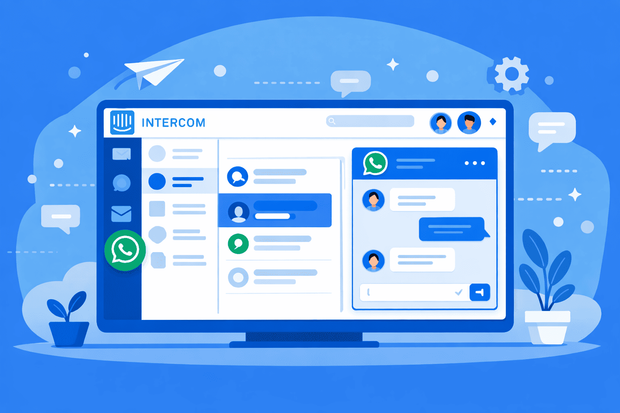
Switching between different browser tabs to answer customers is a frustrating experience that slows down your team. When your WhatsApp messages are separate from the rest of your support tools, it's easy to lose track of conversations.
Bringing WhatsApp directly into Intercom changes the game. It gives you:
- WhatsApp messages appear right next to customers email history and account details
- You can tag teammates, leave internal notes, and assign WhatsApp threads
- You can track team performance using Intercom’s built-in reports.
In this guide, we’ll walk you through how to manage WhatsApp chats inside Intercom efficiently. From how to reply to customers to how to keep your inbox organized.
How WhatsApp messages appear in Intercom Inbox
The WhatsApp Intercom integration works by turning incoming messages into standard Intercom conversations. This means that when a customer reaches out via WhatsApp, it lands in your Team Inbox alongside your emails and live chats.
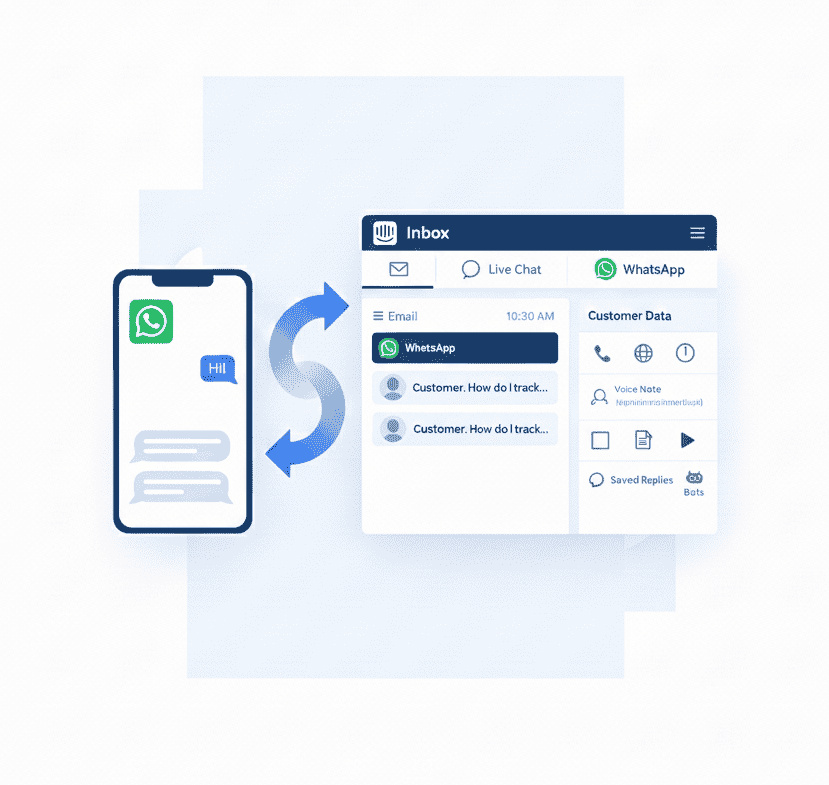
Instead of learning a new interface, your team interacts with WhatsApp messages exactly as they would with any other Intercom chat.
The integration also gives you the following:
- Real-time syncing: When a customer sends a message from their phone, it appears in your Intercom inbox WhatsApp instantly.
- Centralized customer data: Intercom automatically identifies the customer by their phone number. If that number is already in your system, the message is linked to their existing profile.
- Support for different message types: Handling WhatsApp messages in Intercom means you can view images, download PDF documents, and listen to voice notes directly within the Intercom conversation window.
- Metadata: Each conversation carries specific metadata, such as timestamps and the customer's local time zone, which helps your team manage expectations for response times.
- Conversation sessions: Because WhatsApp is technically one long, continuous thread on the user's phone, Intercom uses "sessions" to keep your inbox organized.
What are the different ways to use WhatsApp in Intercom?
Once your setup is complete, you need a solid Intercom WhatsApp support process to keep things running smoothly.
Here's how you can use WhatsApp inside Intercom.
1. Manage inbound WhatsApp messages
When a new message arrives, it triggers a notification in Intercom just like a standard chat. Your team can reply to WhatsApp messages inside Intercom immediately without switching tools.
The primary thing to keep in mind is the 24-hour WhatsApp conversation rule.
WhatsApp requires that businesses respond to a customer within 24 hours of their last message. If you miss this window, you can’t send a free-form text reply; you will have to use a pre-approved WhatsApp Message Template in Intercom to re-engage them.
To help with this, many teams set specific SLAs (Service Level Agreements) for WhatsApp to ensure no message goes unanswered for more than a few hours.
Your team can see the full history of the chat, view attachments like photos or PDFs, and respond using text, emojis, or file uploads. This keeps the inbound WhatsApp Intercom experience fast and fluid for both the agent and the customer.
See how WhatsApp works inside Intercom
2. Organize WhatsApp conversations
As your volume grows, you’ll need a way to organize your WhatsApp Intercom threads so they don’t get lost. The best way to do this is through tags and saved views.
- Tags are labels you apply to a conversation to categorize it by Issue Type, Priority, or even Region. This is vital for reporting later on, as it helps you see exactly why people are messaging you on WhatsApp.
- Saved Views allow you to create a specific folder in your sidebar that only shows WhatsApp conversations. You can filter these views by tags or status, ensuring your WhatsApp-dedicated agents have a clear workspace.
3. Respond faster using saved replies
WhatsApp is a fast-moving channel. Customers expect quick answers to common questions like "Where is my order?" or "How do I reset my password?"
Instead of typing the same answer repeatedly, your team can use Intercom’s Saved Replies (Macros).
These are pre-written templates that can be inserted into a chat with a few keystrokes. It ensures your team stays consistent and saves hours of manual typing every week.
4. Use bots on WhatsApp to automate first response
You don't always need a human to answer the first message. You can use WhatsApp chatbots in Intercom to handle the initial greeting or answer simple questions instantly.
Fin, Intercom’s AI agent, can look at your help articles and answer customer questions on WhatsApp 24/7.
If a customer asks something the bot doesn't know, it will automatically hand the conversation over to a human agent.
You can also set up Custom Bots to ask for specific information—like an account email or order number—before the agent even joins the chat.
Best practices to manage WhatsApp conversations in Intercom
To master Intercom WhatsApp operations, your team needs to move beyond just answering messages.
You need a strategy that respects the fast-paced nature of WhatsApp while keeping your Intercom workspace organized.
Here’s a list of practices you can follow:
- Respect the 24-hour WhatsApp conversation window
- Use WhatsApp templates for re-engagement
- Close conversations in Intercom as soon as they are resolved.
- Tag every WhatsApp chat by intent (example: #billing, #product_bug)
- Use Intercom’s assignment rules to automatically route WhatsApp queries to the team members best equipped to handle them.
- Keep your Saved Replies updated with your latest links and FAQ answers to slash your response times.
How Octopods helps you manage WhatsApp in Intercom
Integrating WhatsApp into your support strategy changes how your team works. It centralizes everything within your Intercom inbox and helps you move away from fragmented conversations.
Octopods helps you integrate WhatsApp and Intercom and opens a wide range of possibilities for your team. It enables Intercom WhatsApp advanced workflows that go beyond basic chat.
Using Octopods becomes essential when your operation hits these specific scenarios:
- If your business has separate departments that each need their own WhatsApp number, Octopods allows you to manage multi-number WhatsApp Intercom setups easily.
- If you need routing by region or brand. You can automatically route incoming messages to specific teams based on which phone number the customer messaged.
- When you need to start conversations or follow up after the 24-hour window.
- For teams handling thousands of messages a day, Octopods provides the stability needed for high-volume traffic
- In a professional support environment, you need to know if a message failed to send. Octopods provides transparency with logs that help you troubleshoot delivery issues in real-time.
Want to try Octopods for the WhatsApp Intercom integration?
FAQs
Can I manage multiple WhatsApp numbers in Intercom?
Yes, but it requires a setup that supports multi-number WhatsApp Intercom management. Tools like Octopods make it easier to route messages from different numbers to the right teams or departments while keeping everything organized in one Intercom inbox.
Can I send WhatsApp messages outside the 24-hour window in Intercom?
Yes, but only with pre-approved WhatsApp templates. Using Octopods, you can manage these templates efficiently and schedule follow-ups to stay compliant with WhatsApp’s 24-hour messaging policy.
Do WhatsApp media files sync automatically in Intercom?
Most standard media types like images, PDFs, and voice notes sync automatically, but very large files or unsupported formats may require additional handling. Using WhatsApp Intercom integration tools, you can ensure that attachments are reliably delivered to your inbox.
Can I use bots to handle WhatsApp chats in Intercom?
Yes, WhatsApp chatbots in Intercom can handle first responses, collect basic information, or answer FAQs. This lets your team focus on more complex queries while ensuring 24/7 coverage.