
Yes, HubSpot does have a native live chat tool, and it's built right into the same Conversations inbox where your team already handles email and form submissions.
But is live chat on your website really covering everything your customers expect from you?
Because chances are, your customers aren't only messaging you through your website widget.
They're texting you, DMing you on Instagram, sending WhatsApp messages, maybe even pinging you on Telegram. Live chat handles one channel really well. What happens to the rest?
We'll walk through exactly what HubSpot live chat does, how to set it up, what it costs, and then tackle that bigger question at the end.
What is HubSpot live chat?
HubSpot live chat is a free tool that lets you add a chat widget to your website so visitors can message your team in real time, with every conversation landing directly in HubSpot's Conversations inbox.
Think of it as the front door to HubSpot's messaging world: it's usually the first channel people add before they realize how much more the Conversations inbox can actually do.
So what do you actually get with it? Let's break it down.
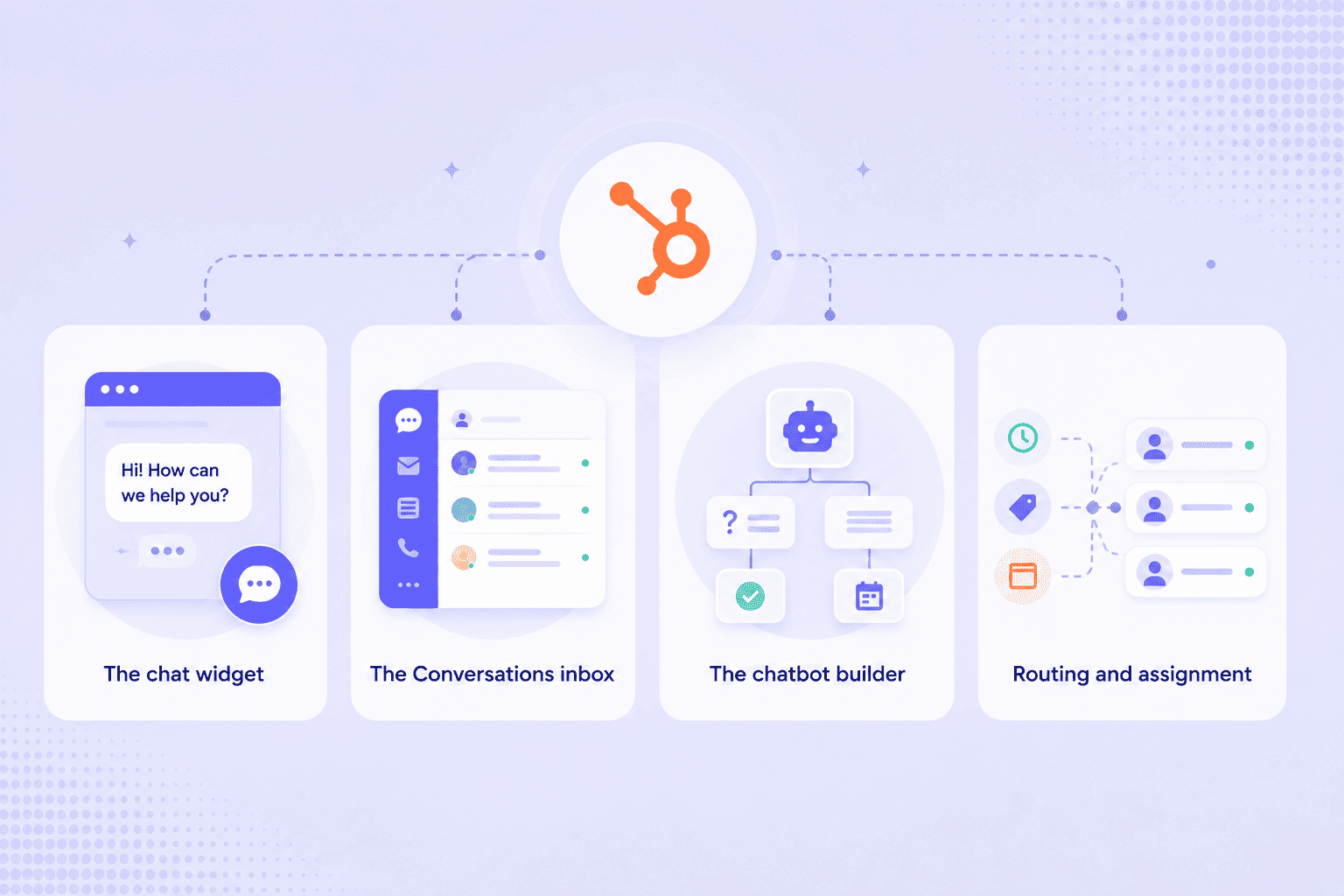
Chat widget
This is the little chat bubble you've probably seen sitting in the corner of a hundred different websites.
You can customize the widget's colors, welcome message, and availability hours to match your brand, and it shows up on desktop and mobile without any extra setup.
Visitors don't need to download anything or create an account; they just click and start typing.
Conversations inbox
Every live chat message flows into HubSpot's shared inbox, the same place your team already handles emails, form submissions, and (if you've connected them) other messaging channels.
This matters because it means your live chat conversations aren't sitting in some separate tool your support team has to check separately. Everything lives in one place, tied to the contact's CRM record.
Chatbot builder
Not every conversation needs a human right away, and HubSpot gets that. Its chatbot builder lets you set up simple bots to qualify leads, answer FAQs, book meetings, or route visitors to the right team, all without writing a line of code.
You can build these with a drag-and-drop editor and layer in logic like "if the visitor mentions pricing, route to sales."
Routing and assignment
Once a conversation comes in, HubSpot can automatically assign it to the right rep or team based on rules you set up, like time of day, topic, or which page the visitor was on.
This keeps chats from piling up in a general queue where nobody's quite sure whose job it is to respond.
Free vs. paid: what do you actually get without paying?
Here's where a lot of people get surprised. The core chat widget and inbox come free with any HubSpot account.
Here's a quick breakdown of what's free and what requires a paid Hub:
| Feature | Free | Requires paid Hub |
|---|---|---|
| Chat widget on your website | ✅ | |
| Conversations inbox | ✅ | |
| Basic chatbot (simple qualifying bot) | ✅ | |
| Canned/saved replies | ✅ | |
| Advanced chatflows with branching logic | ✅ (Sales/Service/Marketing Hub Professional+) | |
| Conversation routing rules | ✅ (Sales/Service Hub Professional+) | |
| Reporting on chat performance | ✅ (Service Hub Professional+) |
If you're just testing the waters, the free tier lets you run live chat on your site without spending anything. The paid tiers start to matter once you want smarter automation or need to see how your team's performing.
How to set up live chat in HubSpot
Getting live chat up and running on your site takes less time than you'd think.
Here's how to set up live chat in HubSpot, step by step.
1. Install the tracking code first
Before anything else, make sure your website has the HubSpot tracking code installed. If your site isn't hosted on HubSpot, the chat widget won't show up without it.
2. Create your chatflow
In your HubSpot account, click More, then head to Service > Chatflows. In the upper right, click Create chatflow and select Website. If this is your first time setting one up, you'll see a Set up chat dialog first, where you'll pick an accent color for your widget before moving on.
From here, choose Live chat if you want real human reps handling conversations (as opposed to a fully automated bot flow), then click through to start customizing.
3. Customize your widget
On the Chatflow tab, you'll set your chat heading (the name and avatar visitors see), write a welcome message, and decide what happens if nobody's available to answer right away.
4. Set up routing
Want chats going to the right people automatically? Toggle on Automatically assign conversations, then choose which users or teams should receive new chats.
One thing worth knowing: anyone included in routing rules needs an assigned Sales Seat or Service Seat, so double-check your team's seat assignments before you count on this working.
5. Choose your inbox and language
Every chatflow connects to an inbox where your team actually reads and replies to messages, so pick an existing shared inbox or create a new one. You'll also select a language for the widget at this stage.
6. Preview, test, and publish
Before going live, preview your chatflow to make sure everything looks and routes the way you expect. Once you're happy with it, hit publish, and your widget will appear on your site shortly after.
7. Turn on notifications
Last step: make sure your team actually gets pinged when a chat comes in. Head to your notification settings and turn on desktop, mobile, and email alerts, so nobody misses a live chat because they weren't staring at the inbox at the right moment.
That's it. Your website now has a working live chat widget feeding straight into HubSpot's Conversations inbox.
HubSpot live chat pricing: Free vs. paid plans
HubSpot live chat is free. That said, "free" comes with a few strings attached, and knowing what those are helps you figure out whether you'll need to upgrade sooner rather than later.
What you get on the free plan
The free tier includes HubSpot's chatbot builder at no cost, with additional functionality available in the premium editions of Marketing Hub, Sales Hub, Service Hub, and Content Hub.
That means your live chat widget, basic rule-based chatbot flows, and the shared Conversations inbox all work without paying anything. The catch is your widget carries HubSpot's own branding, and you won't have access to routing rules, reporting, or a knowledge base search built into the chat.
Starter: the first paid tier
Once you're ready to remove HubSpot's branding from your widget and want a bit more polish, Starter is where you land.
Pricing here typically starts around $20 per seat per month (HubSpot runs promotional rates from time to time, so it's worth checking the current offer), and it opens up basic automation on top of what the free tier already gives you.
Professional: where live chat gets powerful
This is the tier that unlocks the features power users actually want:
- Automatic conversation routing rules
- Real reporting on chat performance
- Knowledge base search built directly into the widget.
Service Hub Professional typically starts around $90 per seat per month, and it usually comes with a one-time onboarding fee (commonly cited around $1,500), so budget for that if you're evaluating this tier.
Enterprise: for complex, high-volume teams
Enterprise sits at the top, generally starting around $150 per seat per month, and it's built for teams juggling complex routing needs, strict SLAs, and high conversation volume across bigger support organizations.
A quick word on AI
If you've seen HubSpot mention "Breeze" alongside live chat, that's HubSpot's AI layer, and it's a separate thing from live chat itself. Breeze Customer Agent is an AI chatbot that reads your knowledge base and resolves conversations on its own, but it's only available on Professional and Enterprise plans, and it's billed separately through a credit system rather than bundled into your seat price.
Here's the tier breakdown at a glance:
| Plan | Starting price | What it adds for live chat |
|---|---|---|
| Free | $0 | Chat widget, basic chatbot builder, shared inbox (with HubSpot branding) |
| Starter | ~$20/seat/month | Removes branding, light automation |
| Professional | ~$90/seat/month | Routing rules, reporting, knowledge base search |
| Enterprise | ~$150/seat/month | Advanced routing, SLA management, highest volume support |
Since HubSpot updates its pricing fairly often, it's worth double-checking the current numbers on HubSpot's live chat page before you commit to a plan.
At this point, you've got the complete picture of what HubSpot's native live chat can do for your website, and what it costs to get there. But here's the question that matters next: what happens to every conversation that isn't happening on your website?
Limitations of HubSpot's native live chat
HubSpot's live chat does what it promises: it captures conversations happening on your website, right when they're happening, and it does that well.
But how much of your actual customer conversation happens on your website these days?
Probably less than you'd like.
Your customers are texting you. They're sliding into your Instagram DMs. They're messaging you on WhatsApp because it's already open on their phone. They might even be reaching out on Telegram or TikTok, especially if you've got any kind of younger or global audience.
None of that traffic touches your website widget, which means none of it shows up in the same place your team is already working.
So what actually happens in most teams? Someone ends up juggling apps. Your support rep answers website chats in HubSpot, then switches over to Instagram's own app to catch DMs, then checks a separate SMS tool, then maybe glances at WhatsApp Business on a different device entirely.
Every one of those channels lives in its own silo, disconnected from the customer's actual CRM record.
That fragmentation causes a few real problems:
- Context gets lost. A customer who messaged you on Instagram last week and emails you today looks like two different people to whoever's answering.
- Your automation and AI tools stop at the website's edge. Any chatbot logic, routing rules, or reporting you've built inside HubSpot only applies to the channel HubSpot's live chat actually covers.
- Response times slow down. When your team has to check four different apps to see if anyone's waiting on a reply.
- Reporting tells half the story. If you're trying to measure your team's actual response time or conversation volume, HubSpot's live chat reporting only reflects the piece of your customer conversations that happened on your site.
So how do you get every one of those other conversations into the same inbox your team's already using?
HubSpot live chat integration: Bringing very channel into one inbox
A HubSpot live chat integration, in this context, means connecting messaging channels to HubSpot that it doesn't natively support directly . This way, all messages flow into the same Conversations inbox your team already uses for live chat, email, and everything else.
Octopods is one tool that does exactly this: it connects 15+ messaging channels, including WhatsApp, SMS, Telegram, Instagram, TikTok, Facebook Messenger, and Slack, to HubSpot, so conversations from any of them show up right alongside your website live chat instead of living in a separate app.
Here's why that matters in practice.
Right now, your live chat handles your website. Everything else, whether that's a WhatsApp message, an Instagram DM, or a text your customer sent from their phone, sits outside HubSpot entirely unless you've connected it.
Octopods closes that gap by feeding all of those conversations straight into your existing inbox, so your team isn't opening five different apps to have one conversation with one customer.
One inbox for every conversation
Whatever channel your customer picks, that conversation lands in the same HubSpot inbox your team already checks for live chat and email. It's tied to the customer's existing contact record too, so agents gain context in seconds.
One set of AI tools across all of them
Here's the part that matters most if you've already invested time building out chatbots or automation in HubSpot: HubSpot's Breeze AI tools work across every channel Octopods connects, not just your website.
So the automation, routing, and reporting you've already set up for live chat can extend to WhatsApp, Instagram, SMS, and the rest, instead of stopping at your website's edge.
HubSpot live chat vs. Omnichannel messaging
Once you understand what HubSpot's native live chat covers, the comparison that actually matters isn't "HubSpot vs. some other tool." It's native live chat vs. native live chat extended to every channel your customers use.
Here's how that looks side by side:
| Capability | Native HubSpot Live Chat | HubSpot + Octopods |
|---|---|---|
| Channels covered | Website chat widget only | Website chat, plus WhatsApp, SMS, Instagram, Telegram, TikTok, Facebook Messenger, Slack, and more |
| Where conversations live | HubSpot Conversations inbox | Same HubSpot Conversations inbox, all channels included |
| Switching between apps | Not needed for website chat, but required for every other channel | Not needed — every channel lands in the same place |
| Breeze AI coverage | Works on website live chat | Works across every connected channel |
| Contact record continuity | Tied to CRM for website chats | Tied to CRM across every channel, so a WhatsApp conversation and a website chat from the same customer connect |
| Reporting scope | Reflects website chat activity only | Reflects activity across every connected channel |
| Setup effort | Already built into HubSpot | Adds a connector on top of your existing HubSpot setup |
Final thoughts
HubSpot's live chat does a good job of covering your website, and now you've got the full picture of its features, setup, and pricing to prove it.
But your customers aren't only reaching out through your website anymore, and the moment they message you on WhatsApp, Instagram, or SMS, that conversation needs a place to land too.
Connecting those channels to HubSpot means your team keeps working from the same inbox they already know, no matter where the conversation started.
Curious what your HubSpot inbox would look like with every channel already in it? See how Octopods brings every channel into HubSpot and take a look at what a fully connected inbox actually feels like for your team.
HubSpot live Chat: Frequently asked questions
Does HubSpot have live chat?
Yes, HubSpot has a native live chat tool built directly into its Conversations inbox, so visitors can message your team from a chat widget on your website. It's included on HubSpot's free plan and works alongside chatbots, routing rules, and reporting on paid tiers.
Is HubSpot live chat free?
Yes, HubSpot's live chat widget and basic chatbot builder are free with no credit card required, though the free version carries HubSpot's branding on the widget. Removing that branding and unlocking features like automatic routing and advanced reporting requires upgrading to a paid Starter or Professional plan.
Can I use WhatsApp with HubSpot?
Not natively, since HubSpot's built-in tools don't connect to WhatsApp on their own. Tools like Octopods bridge that gap by connecting WhatsApp, along with 15+ other messaging channels, directly into the same HubSpot Conversations inbox your team already uses for live chat.
What's the difference between live chat and omnichannel messaging?
Live chat refers specifically to real-time conversations on your website, while omnichannel messaging means bringing every channel your customers use, like WhatsApp, SMS, Instagram, and Telegram, into one unified inbox. HubSpot's native live chat covers the website piece; connecting the rest of your channels is what turns that single-channel setup into a genuinely omnichannel one.