
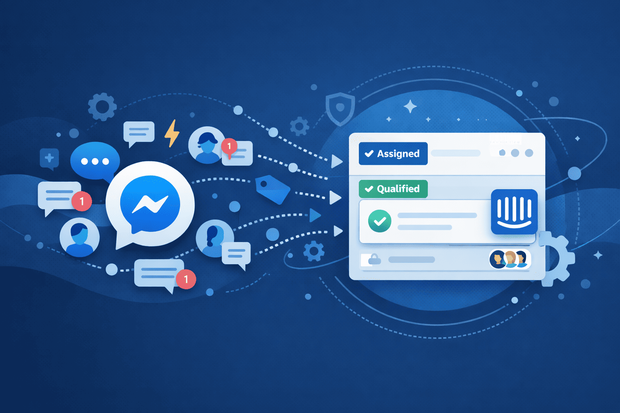
Nowadays, customers go through entire sales and support cycles on Messenger. While they’re scrolling, they see products they like, ask questions, buy, and then return for support. It’s easier for them, but it’s challenging when a team is already managing support elsewhere, like Intercom.
Important questions and comments are on Facebook, team is on Intercom. The only logical solution here is to connect Facebook Messenger to Intercom. Your team manages Facebook messages and comments in Intercom, and your customers stay on the app they love.
In this article, we’ll show you:
- How to connect Facebook to Intercom
- Why Facebook is hard to scale on its own
- How Facebook Intercom integration works
- How teams use Facebook in Intercom
Limitations of managing Facebook messages natively
Why do you need to connect Facebook to Intercom? Because it’s almost impossible to scale on Facebook alone. It’s not a shared inbox, doesn’t have collaboration features, and gives zero visibility to managers.
Here’s why you can’t scale by managing Facebook messages natively:
- Messages are isolated in Meta: Your team manages live chat and email on Intercom, but important customer messages stay on Facebook. There’s no single source of truth for conversation history.
- Poor visibility: Facebook doesn’t have a shared inbox, so every agent manages from their own device. This gives managers very poor visibility into performance, especially if messages don’t sync immediately.
- No CRM context: When Facebook isn’t connected to a CRM, teams have to switch tabs to get deal info and customer history. This wastes time and leaves space for human error.
- Manual conversation routing: Facebook doesn’t have advanced routing features on its own. You can’t assign specific conversations based on triggers to teams or agents. Manual routing might work at first, but it becomes harder when scaling.
- Poor reporting: Facebook has poor reporting compared to Intercom’s advanced AI-based reporting. When scaling, it doesn’t provide much insights into team performance and how to improve.
Why manage Facebook Messenger in Intercom inbox
What happens when you manage Facebook messages inside Intercom? You get one tool as your single source of truth. Any customer info you want, deal context, past conversations, in one place.
Not to mention, you get to use Intercom features across Facebook and other messaging channels.
- Conversations: Your live chats, emails, and Facebook messages all lie in one place, Intercom inbox.
- Customer profiles and contacts: You have saved customer profiles that are shared across your team. If a customer messages you twice, the message will come through the same contact, and you’ll immediately have access to their personal info.
- Assignment rules: Intercom has advanced assignment features that let you assign conversations automatically to teams or agents based on a set of rules you decide.
- Reporting: Intercom’s AI-powered reporting gives you important insights into the performance of your team and shows you the best ways you can improve.
- Automation: You can build automated workflows on Intercom to automate conversation replies, routing, CRM recording, and other admin tasks that take your team a long time.
How Facebook Intercom integration works
If you don’t get how to connect Facebook Messenger to Intercom, here’s how the setup usually looks like:
- You connect your Facebook page(s) to your Intercom workspace through a set of steps
- Facebook messages sync to Intercom, and you start receiving messages inside your inbox.
- All customer conversations become tied to user profiles on Intercom
- Your assignment rules and automated workflows start working across Facebook conversations
You can connect Facebook to Intercom through Intercom's native integrations. However, it only routes messages to Intercom inbox. If you want more capabilities and both messages and page comments in Intercom, you'll need to use a third-party integration tool, like Octopods.
Want to see how Facebook Intercom integration works through Octopods?
What to do after connecting Facebook with Intercom
After you connect Facebook to Intercom, you can start using Intercom’s features to improve your performance and replies. Here are the most important features to start with.
Automate assignment of Facebook messages
First of all, you should use Intercom’s automated workflows and assignment rules to automate assignment of Facebook messages. You can set up specific triggers like language, time, or intent that Intercom will use to assign.
When every agent or team has their assigned conversations, ownership becomes clear, and managers find it easier to track and hold accountability.
Filter & prioritize Facebook conversations
Intercom inbox has some filters that you can use to prioritize Facebook conversations, which become Intercom conversations by default when you integrate both tools.
You can filter conversations based on tags, keywords, data attributes, topics, and status. This helps your team prioritize urgent conversations.
Trigger workflows from Facebook inquiries
Intercom automated workflows can work on Facebook inquiries. Meaning you can trigger specific actions based on keywords in customer conversations.
For instance, if a customer mentions billing issue, an automated workflow can assign that conversation to your support team.
Collaborate across teams on Facebook conversations
Intercom inbox works as a shared inbox where your entire team can reply to customers, leave internal notes, and see each other’s work.
When Facebook and Intercom integrate, your sales and support teams can hand conversations over to each other and overall collaborate over them with ease.
Track Facebook performance in Intercom
Intercom reporting tools can show you how fast your team replies to Facebook conversations. You can also track important metrics like number of conversations dropped, closed, or handed over.
This helps you improve performance over time, which in turn helps you retain more customers.
Facebook Messenger use cases in Intercom
Your sales & support teams will benefit the most from using Facebook Messenger in Intercom. Here are everyday use cases for the Facebook Intercom integration:
Customer support on Facebook Messenger
Customers spend a long time on Facebook, so instead of leaving it to contact you on live chat or email, they can just send you a message.
If you have Facebook set up inside Intercom, you can use all of Intercom’s support features to reply to these messages, like assignment rules, automatic replies, and AI reporting.
Sales conversations from Facebook
Customers who see your product on Facebook will message you there. Instead of your sales team switching between tools to reply to them, they can manage it all inside Intercom.
They can use filtering and different Intercom inbox views to prioritize and focus.
Lead qualification from Facebook messages
Qualifying leads from Facebook means automatically capturing conversations and engaging with high-intent prospects.
When Facebook works in Intercom, your sales team can use automated questions, tagging, or other Intercom features to qualify faster.
Managing multiple Facebook pages in Intercom
Facebook Intercom integration lets you manage multiple Facebook pages, not only one. This makes it easier and faster for your entire team because they won’t have to switch tools or devices or even accounts.
All pages will be within a button click on Intercom. Customers will get faster replies, and you’ll get smoother operations.
Common mistakes when integrating Facebook Messenger
When integrating Facebook Messenger and Intercom, teams make a few mistakes that affect their performance. Here’s a quick overview of them so that you can avoid them.
- No specific routing rules: When channels are connected but there aren’t assignment rules in place, messages will pile up without clear ownership, and customers will get late or no replies.
- Treating Facebook like email: Using FB in Intercom doesn’t mean it’s like email. Customers expect fast replies on it, so you need to set up automatic replies and AI bots to keep your response times reasonable.
- Skipping qualification workflows: Without a qualification workflow in place, all messages will go straight to sales, which means a lot of time wasted on irrelevant or low-intent leads.
- Not defining KPIs: After you integrate FB and Intercom, you need to measure the success of the integrations. You can do so by defining reporting KPIs like response time, qualified leads, closed deals, or even revenue.
FAQs on Facebook Intercom Integration
Can I connect Facebook Messenger to Intercom?
Yes, you can connect Facebook Messenger to Intercom through Intercom’s native integration or third-party integration tools like Octopods. The native integration lets you route Facebook messages to Intercom, while Octopods lets you route both messages and page comments.
Can multiple Facebook pages connect to Intercom?
Yes, multiple pages can connect to Intercom through the native integration or integration tools like Octopods. When setting up the connection, you can choose only one or all your Facebook pages so that you can manage them all inside Intercom.
Can I automate replies to Facebook messages in Intercom?
Yes, you can automate replies to Facebook messages in Intercom if you connect the two tools and build automated workflows using Intercom’s builder. You can build workflows that reply automatically, assign conversations, and even follow up with customers.