
WhatsApp is one of the strongest channels for customer service and customer-facing communication. But unlike live chat or email inside Intercom, WhatsApp has strict guidelines that control when and how you can message customers.
If your team uses Intercom and wants to message customers on WhatsApp outside the 24-hour window, or wants to send structured, compliant notifications, you need WhatsApp Message Templates.
This guide explains everything Intercom users should know about WhatsApp template messages:
- Why businesses need WhatsApp message templates
- How WhatsApp message templates approval works
- How to send WhatsApp templates from Intercom
Let’s break it down.
What are WhatsApp message templates
WhatsApp Message Templates are pre-approved, structured messages that businesses can send to customers. It’s a feature available only through the WhatsApp Business API, not the WhatsApp Business App.
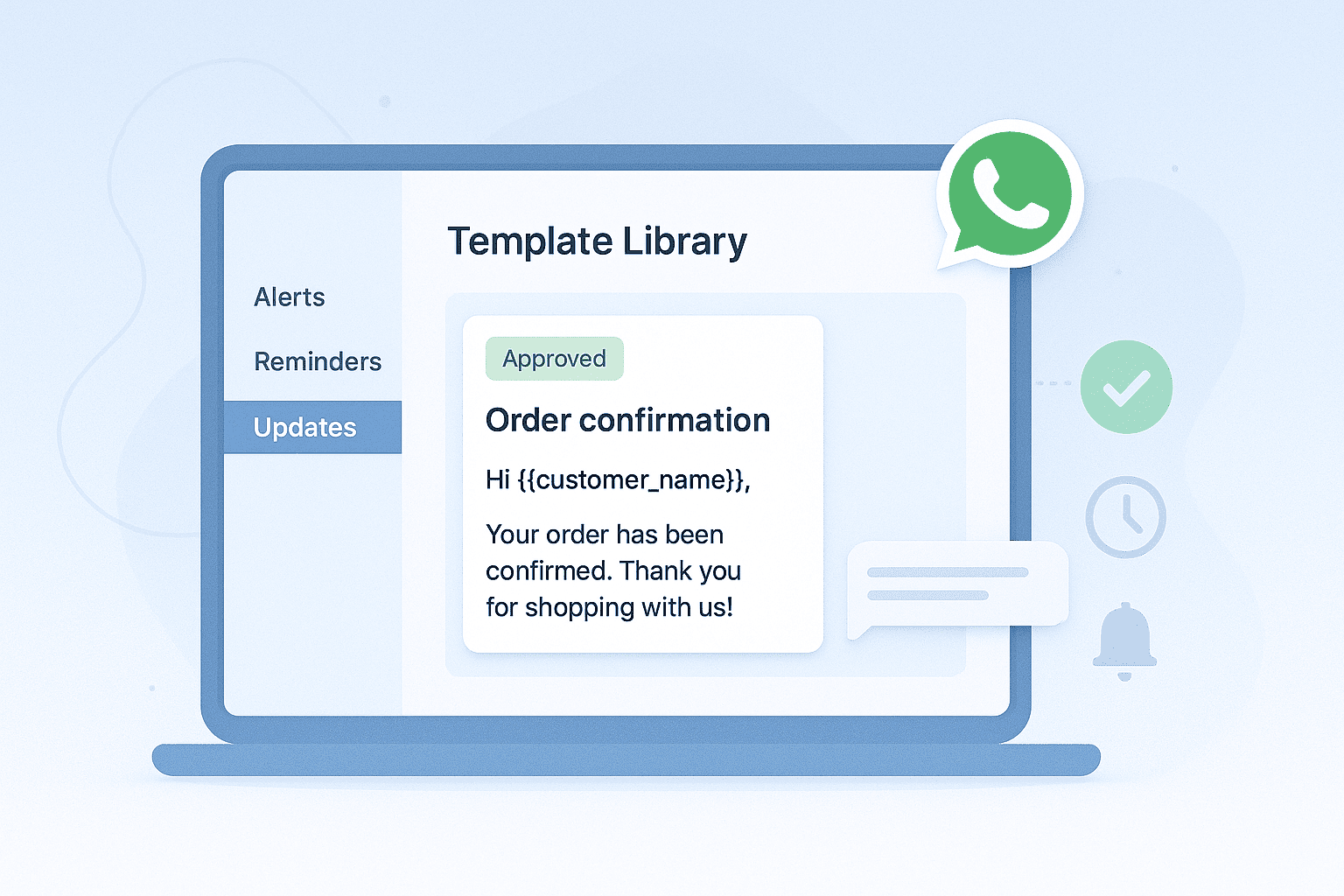
Template messages from WhatsApp allow Intercom teams to:
- Reopen conversations after the 24-hour customer service window
- Send proactive notifications (order updates, reminders, confirmations)
- Deliver consistent, on-brand responses
- Ensure policy compliance with WhatsApp guidelines
Because Intercom WhatsApp integration works via the official WhatsApp Business API, templates are part of the ecosystem by design.
Why WA templates are required in Intercom
WhatsApp’s 24-hour customer service window limits how long you can send free-form replies to a customer. Once a user messages your business, you have 24 hours to respond with anything you need, but after that window closes, WhatsApp blocks all non-templated messages.
This is known as the WhatsApp 24-hour conversation rule, and Intercom follows it strictly to stay compliant.
If a customer hasn’t replied for 24 hours, Intercom can’t send a normal message back, even if the conversation is still open on your side. Free-form text, images, or prompts all fail because WhatsApp only allows approved, structured content once the window expires.
That’s why WhatsApp message templates are essential. They’re the only compliant way to reopen the conversation after 24 hours, letting your team follow up, share updates, and continue the flow without violating WhatsApp’s rules.
Types of message templates teams can use
There are three types of WhatsApp message templates that businesses can send through intercom: utility, marketing, and authentication.
1. Utility templates
Utility templates help you send business-initiated messages related to ongoing transactions, things like post-purchase updates, order confirmations, or billing reminders.
They’re usually triggered by a user action, and they must clearly refer to the specific transaction, account, or request they’re connected to.
2. Marketing templates
Marketing templates are used when you want to promote something to customers who have opted in. These include product announcements, special offers, reminders, or any promotional update.
If the message isn’t for authentication or a specific transaction, it generally falls under this marketing category.
3. Authentication templates
Authentication templates are made for sending one-time passcodes that help users verify their identity.
They support login steps, account verification, and any situation where secure access is required.
How WhatsApp message template approval works
WhatsApp template approval in Intercom works when you create a template and submit it for a review process.
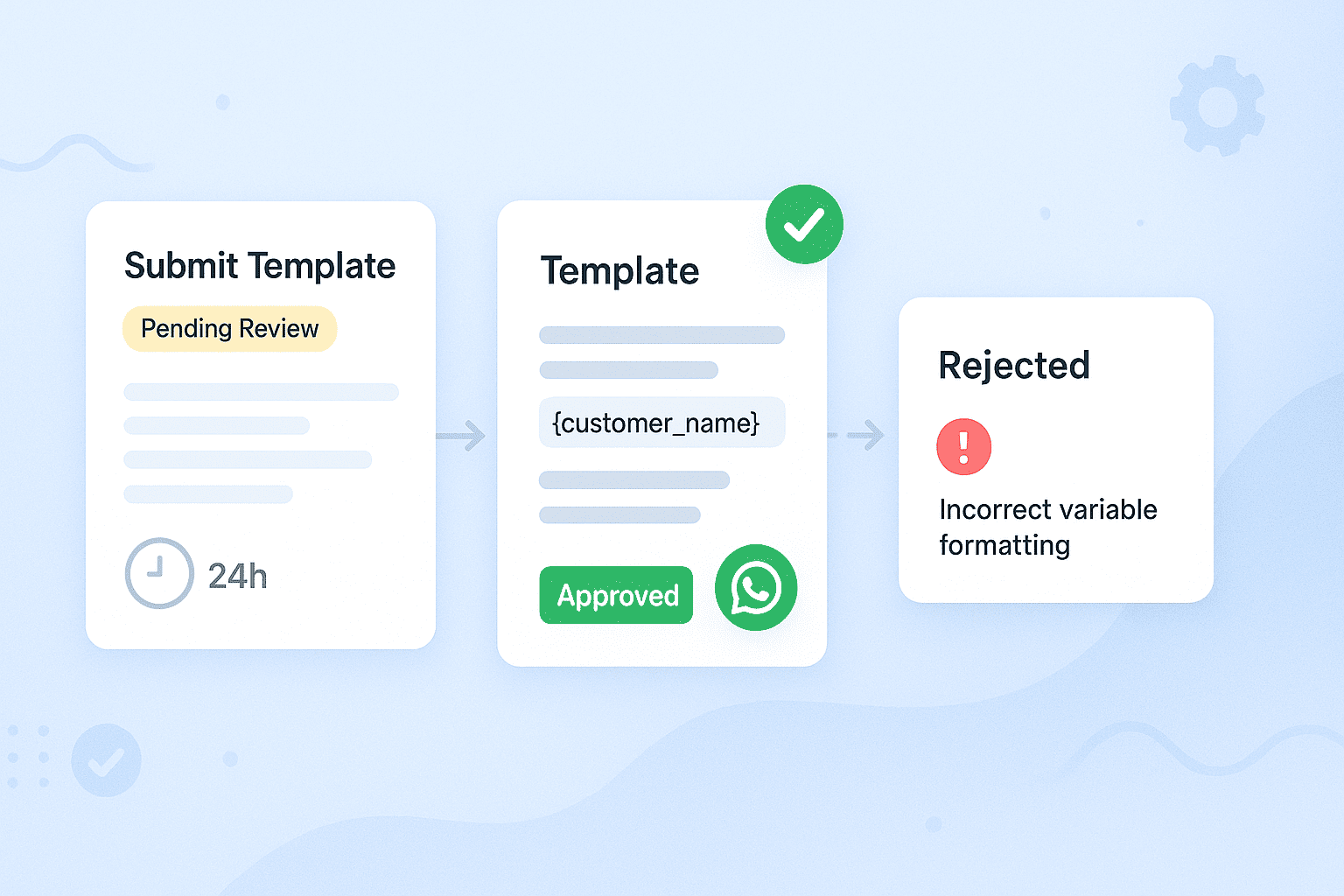
The review process usually takes up to 24 hours. Once Meta approves it, you can start sending the template to customers right away.
If it gets rejected, you can edit it and resubmit, or appeal the decision.
To avoid delays, make sure your template follows WhatsApp’s formatting and policy rules. The most common reasons for rejection include:
- Incorrect variable formatting, like missing or mismatched
{{1}}placeholders - Starting or ending the message with a variable
- Using too many variables for the overall message length
- Content that breaks WhatsApp’s Business Policy, such as asking for sensitive identifiers
How to send WhatsApp templates in Intercom
Sending WhatsApp templates in Intercom is simple once you create the template and get it approved.
You can manage all your templates from Intercom’s settings area. This section acts as your workspace for creating new templates, checking their approval status, and organizing them so your team can find them quickly.
From here, you can:
- Review which templates are active
- Edit and resubmit rejected templates
- Search and filter your library
- Create new templates and send them for approval
When creating a new one, you choose a category, write your message, add media or buttons if needed, and submit it for Meta’s review.
When you’re inside a conversation, approved WhatsApp templates appear as selectable options in the reply box. Intercom automatically checks whether the 24-hour customer-service window is still open. If it isn’t, Intercom will surface template options so you can reply without triggering WhatsApp’s delivery errors.
Intercom doesn’t connect to WhatsApp directly on its own. To send templates, track approvals, and ensure reliable message delivery, it relies on an integration layer. This can be Intercom's native WhatsApp integration or a third-party solution like Octopods.
Octopods is an integration platform that connects Intercom to WhatsApp and other messaging apps. It ensures templates sync correctly, supports the full range of API features, and manages message delivery behind the scenes.
Best practices for WhatsApp templates in Intercom
Using WhatsApp templates in Intercom works best when your messages are clear and relevant. Following a few key best practices helps ensure your templates get delivered.
- Keep templates short & contextual: Focus on the key message and link it to the customer’s recent action
- Example: A delivery update: “Hi {{ contact.name }}, your order #{{1}} has been shipped and will arrive tomorrow.”
- Use variables to personalize messages: Personalization makes templates feel human and relevant
- Example: “Hello {{ contact.name }}, your subscription for {{2}} is now active.”
- Add buttons to improve response rates: Buttons make it easy for customers to take action without typing
- Example: “Confirm your appointment: [Yes] [Reschedule]”
- Follow opt-in rules for marketing templates: Only send promotional content to users who have explicitly opted in
- Monitor performance & delivery rates: Track how templates are performing to optimize content and timing
Common WhatsApp template issues in Intercom
Even with approved templates, teams sometimes run into issues when using WhatsApp in Intercom. Whether a template is rejected, won’t send, or fails to deliver, understanding the common causes can help you troubleshoot quickly.
Why is my WhatsApp template being rejected?
Templates can be rejected during approval if they don’t meet WhatsApp’s requirements. Common reasons include:
- Wording is too promotional: Templates meant for transactional updates or authentication shouldn't sound like sales pitches.
- Missing opt-in: Marketing messages must only be sent to users who have explicitly agreed to receive them.
- Not enough context: Templates need to clearly relate to the customer’s transaction, interaction, or request to be approved.
Why can’t I send a template message from Intercom?
Sometimes a template is approved but can’t be sent from Intercom. This usually happens because:
- Conversation window already open: If a user is already in a live chat within the 24-hour window, Intercom may not allow a separate template message.
- Missing template approval: Only templates that are fully approved and active can be sent.
- Unsupported variable formatting: Variables must follow the correct format (
{{1}}) to send correctly. - Integration provider may need syncing: If your integration layer isn’t fully synced, the template might not appear as an option or fail to deliver.
These scenarios are often the cause of the dreaded WhatsApp template not sending in Intercom issue. Checking approval status, variable formatting, and your integration sync usually solves the problem.
Why is my message template failing to deliver?
Even after a template is sent, delivery can sometimes fail. Typical reasons include:
- Incorrect variables: If placeholders are missing or formatted incorrectly, the message won’t go through.
- User blocked the number: If the recipient has blocked your WhatsApp business number, the message cannot be delivered.
- Outdated template version: Sending an old version of a template that’s no longer approved can cause delivery failures.
Facing trouble setting up your WA templates inside Intercom?
WA templates are the key to WhatsApp service inside Intercom
WhatsApp templates are essential for keeping conversations compliant, timely, and personalized. They let teams follow up with customers beyond the 24-hour window, support automated workflows, and meet the expectations users have for fast, clear communication.
When you connect Intercom with WhatsApp, your support team gains a powerful channel for proactive support and engagement, and that power is fully unlocked when you have complete API template access.
For a smooth, reliable experience managing and sending templates at scale, many teams turn to an integration layer like Octopods, which ensures your messages are delivered quickly and correctly every time.
FAQs
What are WhatsApp Message Templates in Intercom?
WhatsApp Message Templates in Intercom are pre-approved, structured messages that businesses use to communicate with customers after the 24-hour response window has passed. They allow teams to send updates, notifications, and personalized messages while staying compliant with WhatsApp’s rules, and they can include variables, buttons, and media to make messages more engaging.
How do I send a WhatsApp template from the Intercom inbox?
To send a WhatsApp template template in Intercom, open a conversation in Intercom, select the linked WhatsApp business number, and choose an approved WhatsApp template from the reply options. Fill in any variables, add fallback text if needed, and send. Intercom will automatically suggest templates if the 24-hour messaging window has passed.
Why can't I reply to a WhatsApp customer after 24 hours in Intercom?
WhatsApp limits free-form messages to a 24-hour customer service window. After this period, Intercom can no longer send regular messages, and the only way to continue the conversation is by using an approved WhatsApp message template. This ensures compliance with WhatsApp’s rules while allowing you to follow up.
Why are my WhatsApp templates not appearing in Intercom?
WhatsApp templates may not show up in Intercom if they aren’t fully approved, if the variables are formatted incorrectly, or if your integration layer isn’t synced. Ensuring the template is active, properly formatted, and that your WhatsApp connection is up to date usually resolves the issue.
How do I create or edit WhatsApp templates for Intercom?
Navigate to Settings > Channels > WhatsApp in Intercom. Click on Create and manage message templates, then select Create Template to make a new template. From here, you can add text, variables, buttons, or media and submit it for approval. Existing templates can be edited and resubmitted as needed.
What types of WhatsApp templates can I use with Intercom?
Intercom supports three main types of WhatsApp templates:
- Utility templates: For transactional messages like order updates, billing, or account notifications.
- Marketing templates: For promotional messages to users who have opted in, such as offers or announcements.
- Authentication templates: For sending one-time passcodes and other messages that verify user identity.
Can I automate WhatsApp template messages in Intercom workflows?
Yes. Intercom allows you to include approved WhatsApp templates in automated workflows, so messages can be sent based on triggers like user actions, subscription updates, or support requests. This automation ensures that follow-ups, reminders, and notifications are delivered consistently and on time, while keeping all messages compliant with WhatsApp’s 24-hour rule and template requirements.
Does Intercom support WhatsApp template buttons?
Yes. Intercom fully supports buttons in WhatsApp templates, allowing you to include quick reply options or call-to-action buttons. These make it easier for customers to respond or take action directly from the message, improving engagement and streamlining interactions.